
Causes Behind Outlook Stop Loading the Profile
Before moving to solutions, discussing the possible causes behind this issue is essential. Following are some significant causes:
- Corrupt Outlook data file
- The navigation bar issues
- Defects in Outlook add-ins
- Outlook is running in the compatibility mode
- Processes like Outlook.exe and others are still running in the background
Fix Outlook Profile Not Loading Issue
Follow these methods to resolve the Outlook stuck on loading profile issue.
Run Outlook as Administrator
Usually, Outlook doesn’t need admin access to work, but there is a possibility that the issue is because of Outlook’s lack of permission to access the profile. That’s why running Outlook as an administrator can resolve ‘Outlook stuck on loading profile’ issue. Follow the steps below to do this:
- Open the search bar and type Outlook.
- Right-click on Outlook and then choose Run as Administrator.
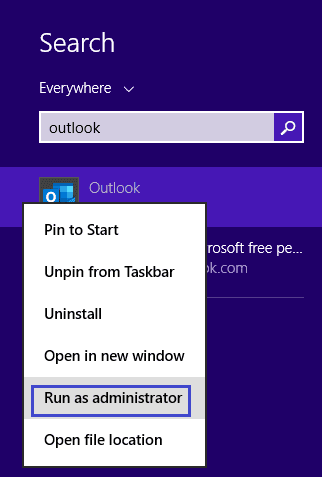
- Click Yes to confirm it. Now Outlook is ready to run as administration
Disable Outlook Add-ins
If the above method doesn’t work, you can also try to resolve this issue by disabling Outlook add-ins. Follow the steps below to do it:
- Open the Run Box by pressing the ‘Windows + R’ key together. Now enter ‘Outlook.exe /safe’ and click OK (make sure the Outlook application is closed).
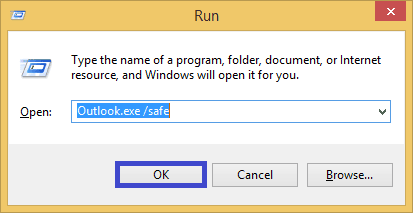
- Select your Profile and Click ‘OK.’
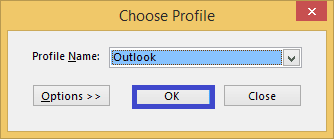
- Now, select the ‘File’ then ‘Options.’ After that, tap on the ‘Add-ins’ and click on ‘Go.’
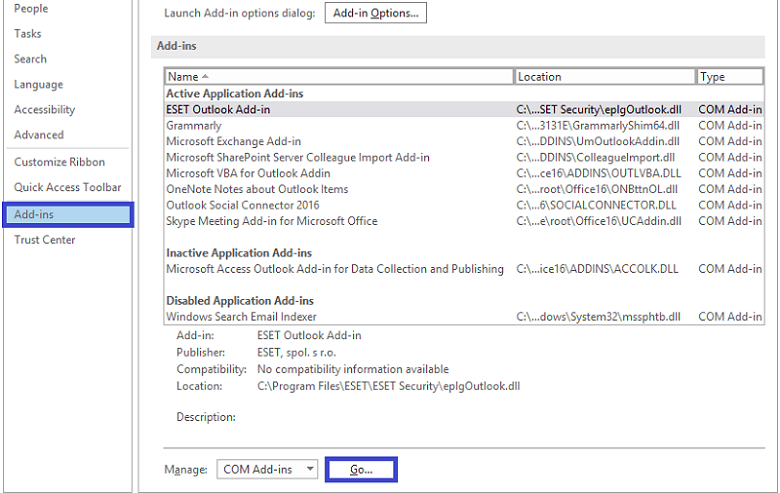
- Now, uncheck all the Add-ins and then click OK.
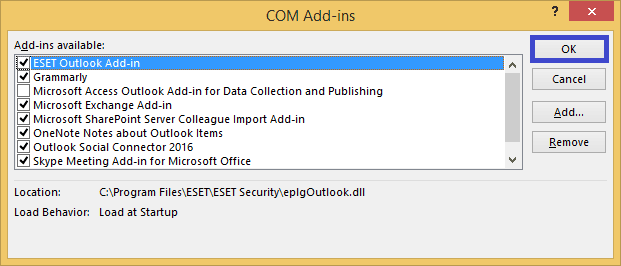
- Once completed, close Outlook and restart it.
Reset the Navigation Panel
Follow the steps below to reset the navigation panel and fix the loading profile issue.
- Open the Run Box by pressing the ‘Windows + R’ key together. Now enter ‘Outlook.exe /resetnavpane’ and click ‘Ok’ (make sure the Outlook application is closed).
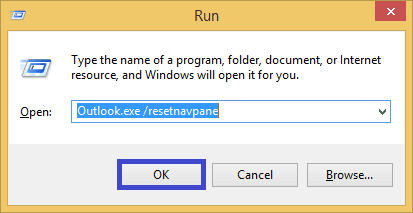
- Now Outlook’s navigation panel will go into the default state.
Repair Corrupted Outlook Files
Outlook won’t work correctly and will not be able to load the profile screen if its files are corrupted. These files can be repaired through an inbuilt program in the Outlook installation directory.
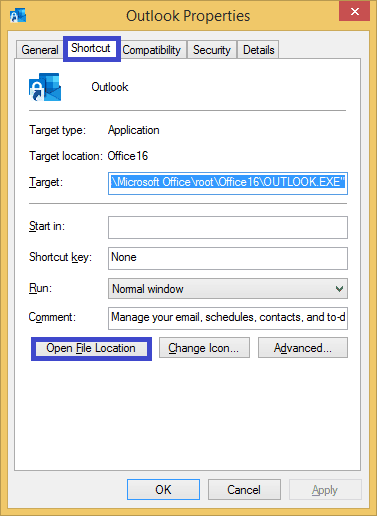
- Right-click on Outlook and select ‘Properties’ to open it.
- In the ‘Shortcut’ bar, click ‘Open File Location. ‘ It will open the Outlook Installation directory.
- Search SCANPST.EXE and open it. Outlook Inbox Repair Tool will open where you can select a file to scan and repair it.
- Now, click Browse and select the PST file and click ‘Start.’ Now the file scanning starts to find out errors.
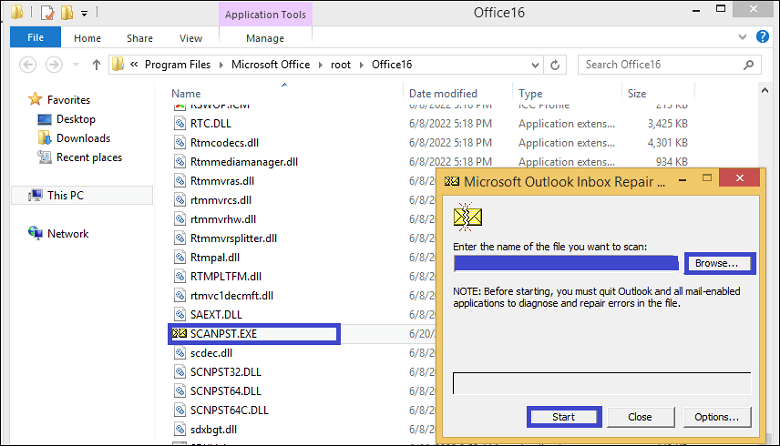
- Click ‘OK’ once SCANPST has finished scanning and repairing.
End Office-related Processes in Task Manager
Sometimes, Outlook might not work if other Office-related processes are still running. You can end all office-related processes in task manager to ensure a fresh start.
- Open Task Manager on your system.
- Select Office-related tasks and then click ‘End Task.’
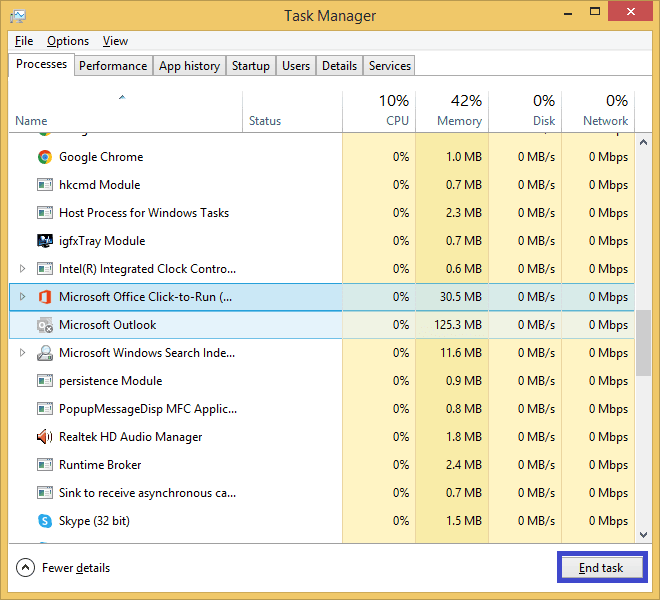
- Now Open Outlook.
Disable Outlook’s Compatibility Mode
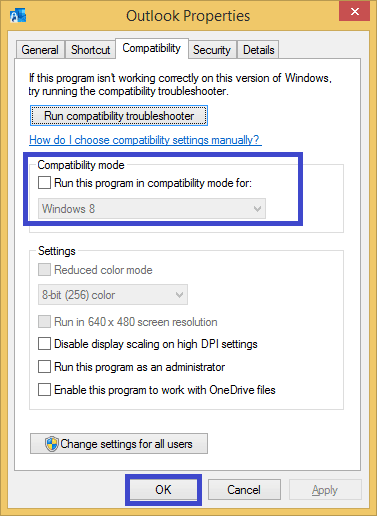
Follow the steps below to disable Outlook’s compatibility mode.
- Right-click on Outlook and select ‘Properties.’
- Now tap on the Compatibility tab and uncheck the option ‘Run this program in compatibility mode for’ and click ‘Ok’ for confirmation.
Repair Corrupted Outlook Data Files
If the above methods fail to resolve Outlook’s loading profile issue, your PST files might be corrupted or damaged. In such a case, we recommend you go ahead with one of the best tools named Kernel for Outlook PST Repair. This tool uses quick data recovery algorithms to repair the damaged or corrupted PST files quickly. It has an easy-to-understand User Interface, and you can quickly recover all emails, contacts, notes, attachments, etc., with complete accuracy. Moreover, it also supports all Outlook versions up to 2019.
Conclusion
Situations like ‘Outlook stuck on loading profile’ can’t be ignored and require some serious actions to resolve them. With the above-discussed methods, you can try to resolve this issue. From quite a few reasonable solutions, we recommend you use professional Outlook PST Repair software which we discussed last. It is the most reliable and straightforward software to repair errors like Outlook crashes when replying to email and corrupt PST files. It also recovers large PST files and retrieves deleted emails and attachments.