
First, we need to access the PHP website for Windows.
Locate and download the Non-Thread Safe (NTS) versions of PHP.
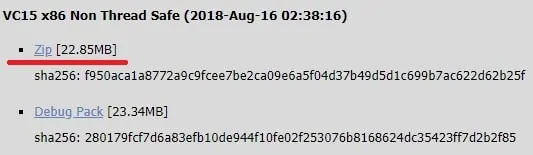
In our example, the following file was downloaded: php-7.2.9-nts-Win32-VC15-x86.zip.
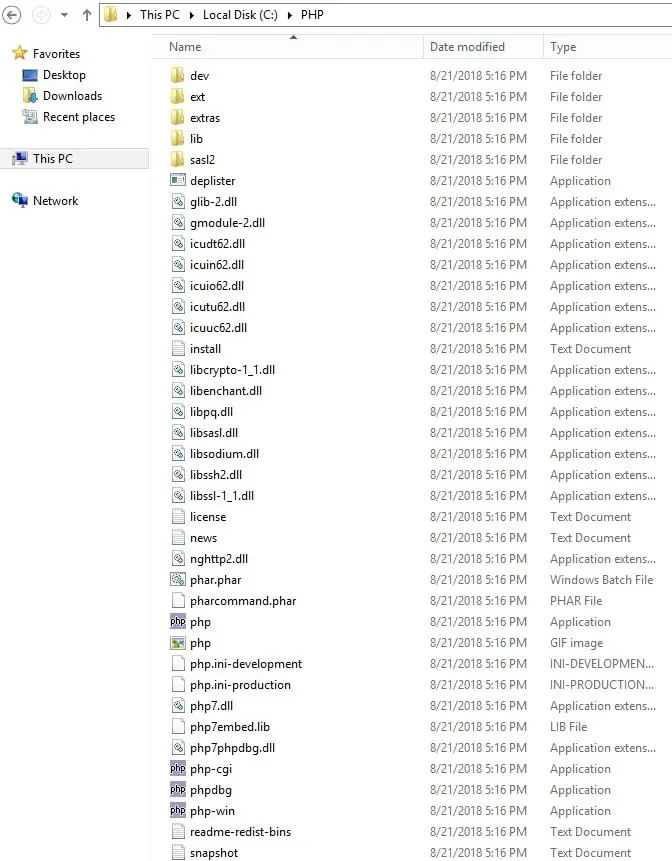
Create a directory named PHP on the root of your C drive.
Extract the content of the file inside the PHP folder.
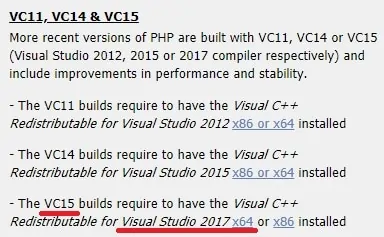
PHP for Windows requires the installation of a specific version of Microsoft Visual Studio.
In our example, we downloaded the PHP package build VC15.
PHP Build VC 15 requires the installation of the Microsoft Visual Studio version 2017.
Download and install Microsoft Visual Studio version 2017 x86.
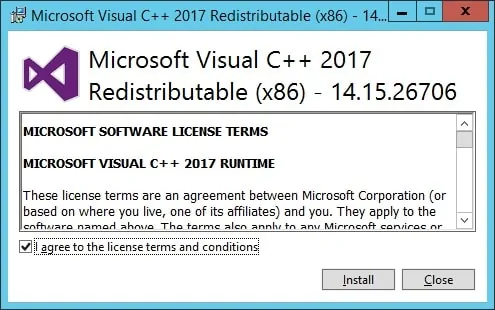
After finishing the Visual Studio installation, we need to add the PHP directory to the PATH environment variable.
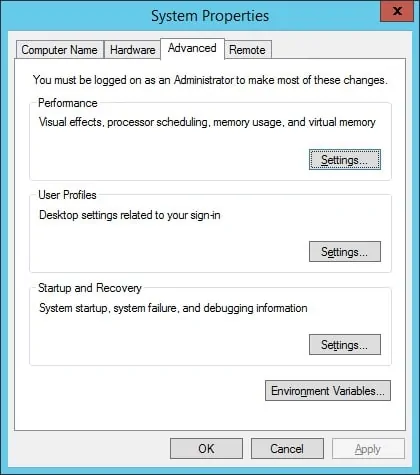
Access the System properties window.
Access the Advanced tab and click on the Environment variables button.
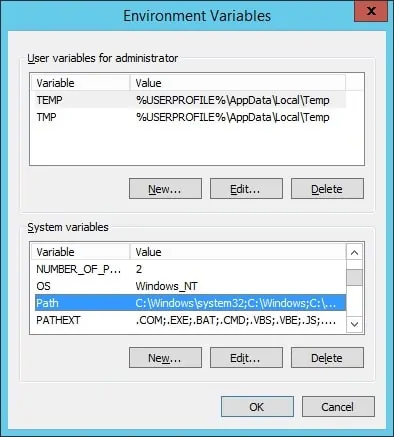
Select the PATH variable and click on the Edit button.
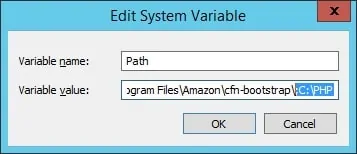
Add the PHP directory to the end of the PATH variable value.
Copy to Clipboard
;C:\PHP
Open the Windows explorer application and access the PHP folder.
Locate the file named PHP.INI-PRODUCTION.

Rename PHP.INI-PRODUCTION to PHP.INI
Edit the file named PHP.INI.
Here is the original file, before our configuration:
Copy to Clipboard
; date.timezone =
; fastcgi.impersonate = 1
; cgi.fix_pathinfo=1
; cgi.force_redirect = 1
; extension_dir = "ext"
; extension=bz2
; extension=curl
; extension=gd2
; extension=ldap
; extension=mbstring
; extension=mysqli
; extension=openssl
Here is the file, after our configuration.
Keep in mind that your timezone file may not be the same as mine.
Copy to Clipboard
date.timezone = America/Sao_Paulo
fastcgi.impersonate = 1
cgi.fix_pathinfo=1
cgi.force_redirect = 0
extension_dir = "ext"
extension=bz2
extension=curl
extension=gd2
extension=ldap
extension=mbstring
extension=mysqli
extension=openssl
Test the PHP installation.
Open a DOS command prompt and enter the following command.
Copy to Clipboard
C:\> php -info
phpinfo()
PHP Version => 7.2.9
System => Windows NT TECH-DC01 6.3 build 9600 (Windows Server 2012 R2 Standard dition) i586
Build Date => Aug 15 2018 23:05:53
Compiler => MSVC15 (Visual C++ 2017)
Architecture => x86
Congratulations! you installed PHP on the Windows server.
Tutorial – IIS Installation on Windows
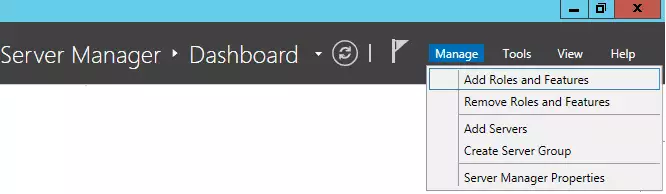
Open the Server Manager application.
Access the Manage menu and click on Add roles and features.
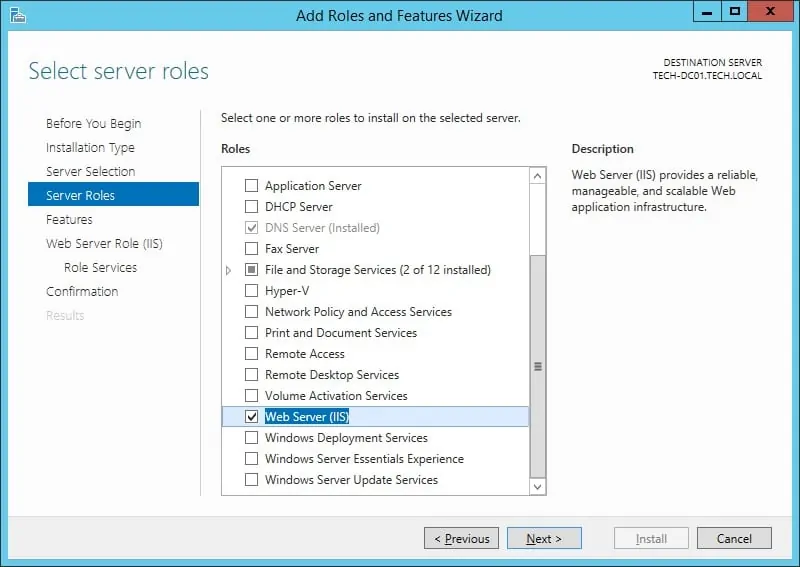
Access the Server roles screen, select the Web Server (IIS) option and click on the Next button.
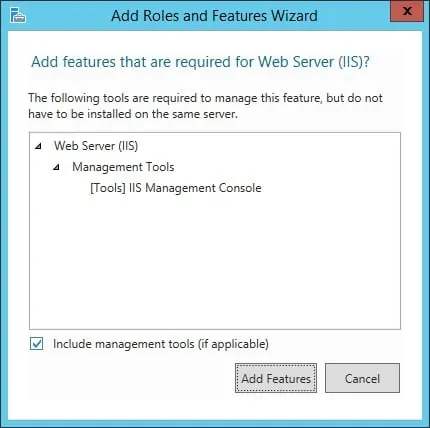
On the following screen, click on the Add features button.
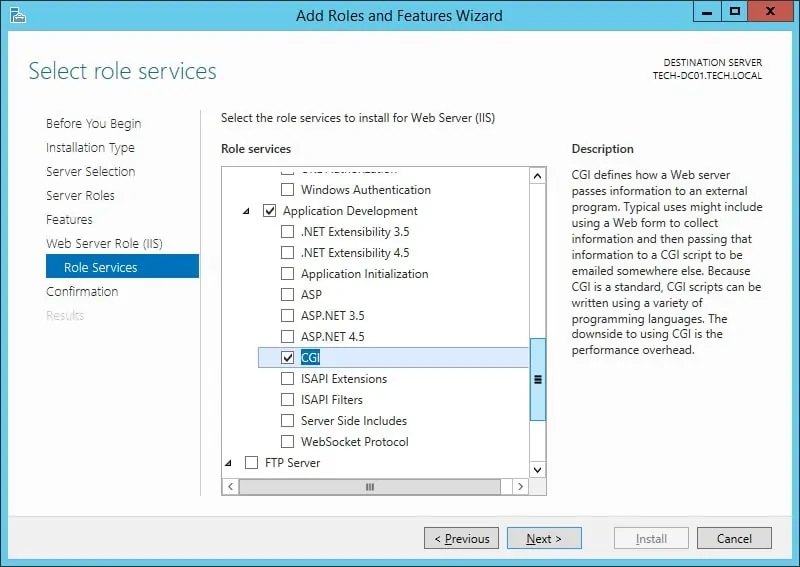
On the IIS service screen, select the CGI option and finish the installation.
The IIS server was installed on your computer but we still need to configure the PHP integration.
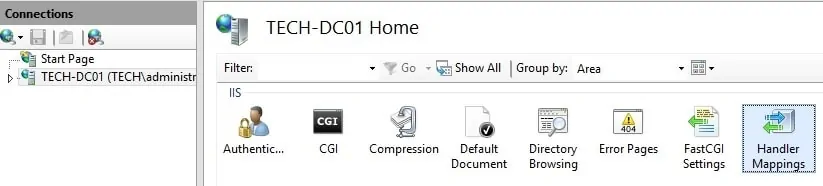
Open the IIS manager application and access the Handler Mappings option.
On the right part of the screen, select the option named: Add Module Mapping.
On the Module mapping screen, you will have to enter the following information:
Copy to Clipboard
• Request Path - *.php
• Module - FastCGIModule
• Executable - C:\php\php-cgi.exe
• Name - PHP
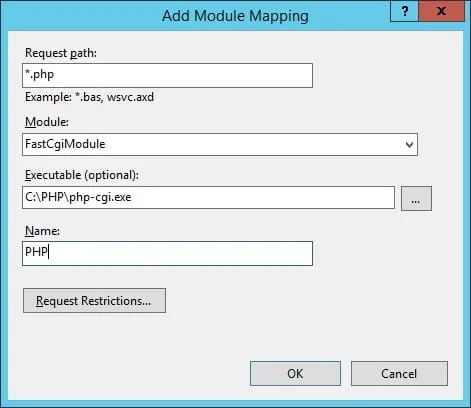
Click on the button named: Request Restrictions.
Select the File or Folder option and click on the OK button.
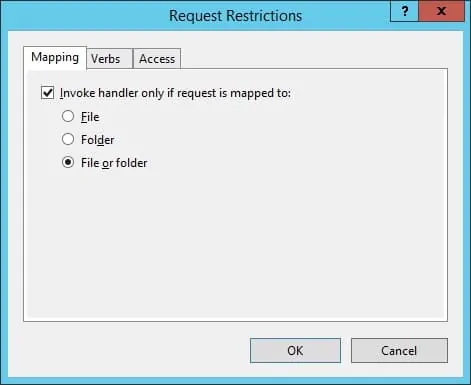
Click on the OK button.
If the following message is presented, click on the Yes button.
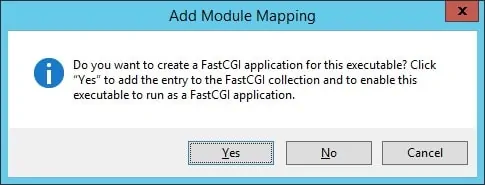
Now, we need to configure IIS to accept index.php as a default page.
Open the IIS manager application and access the Default Document option.
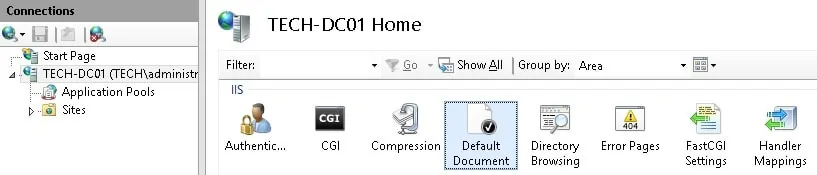
On the right part of the screen, select the option named: Add…
On the Add default document window, you will have to enter the following information:
Copy to Clipboard
• index.php
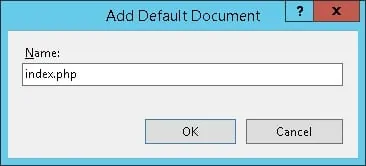
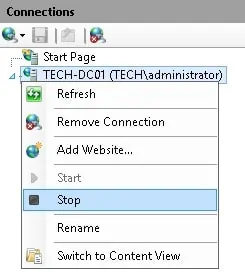
To finish the installation you need to restart the IIS service.
Right click on the server name on the top left part of the screen and select the option Stop.
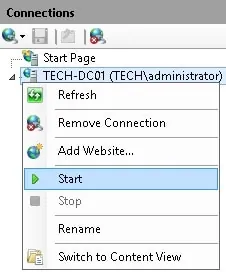
Right click on the server name on the top left part of the screen and select the option Start.
Congratulations! You have installed PHP on the Windows server.
The IIS server is now supporting the use of PHP.
Testing Your PHP installation on Windows IIS
Open the notepad application and create a document named test.php
This document should be placed inside the WWWROOT folder.
Copy to Clipboard
<?php
phpinfo();
?>
Open your browser and enter the IP address of your IIS web server plus /test.php
In our example, the following URL was entered in the Browser:
• http://35.162.85.57/test.php
The following content should be presented.
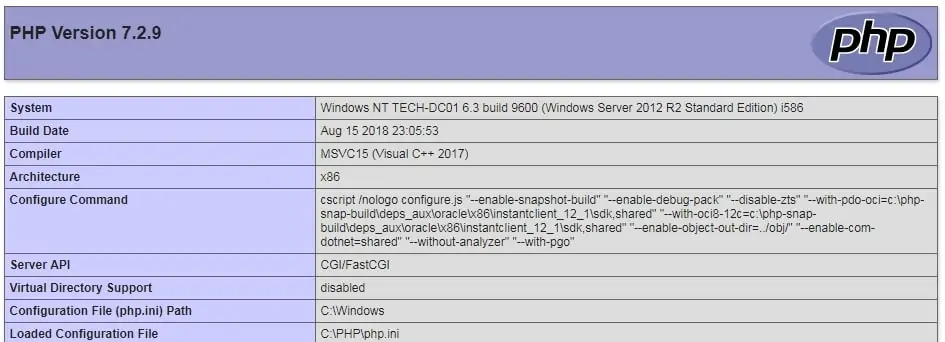
The PHP installation on IIS was tested successfully.