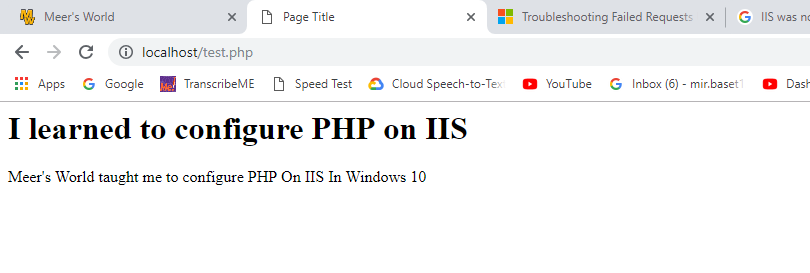
- Click Internet Information Services
- Click World Wide Web Services
- Click Application Development Features
- Tick CGI
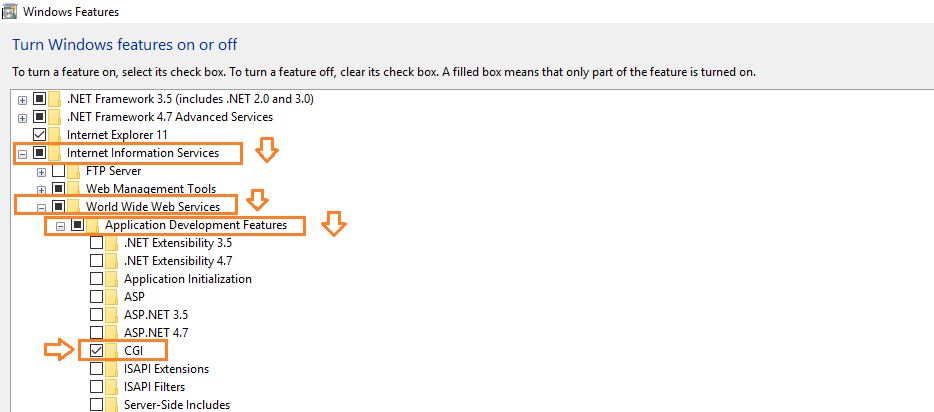
- Wait for the changes to be applied.
Step 2: Download PHP
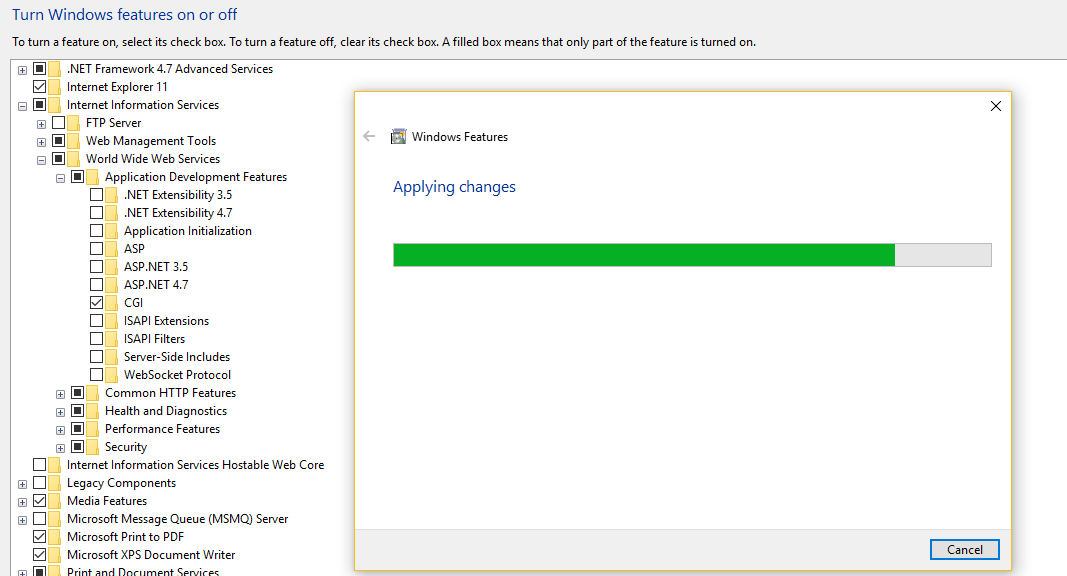
- Go to: https://windows.php.net/download/.
- Choose 64 bit version. It should be Non Thread Safe, because it is recommended for IIS.
- Click Zip, to download.
- Extract Zip folder to C:.
- Name it PHP.
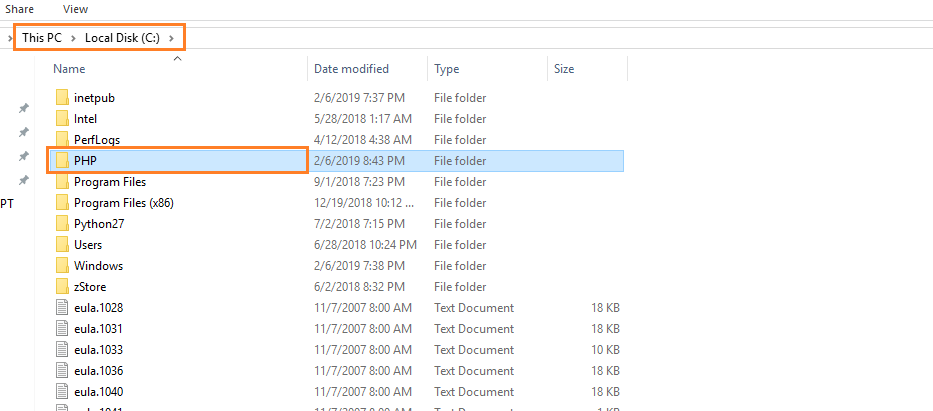
Step 3: Configure PHP.ini
- Open PHP folder.
- Copy php.ini-production file & Paste there in the same directory.
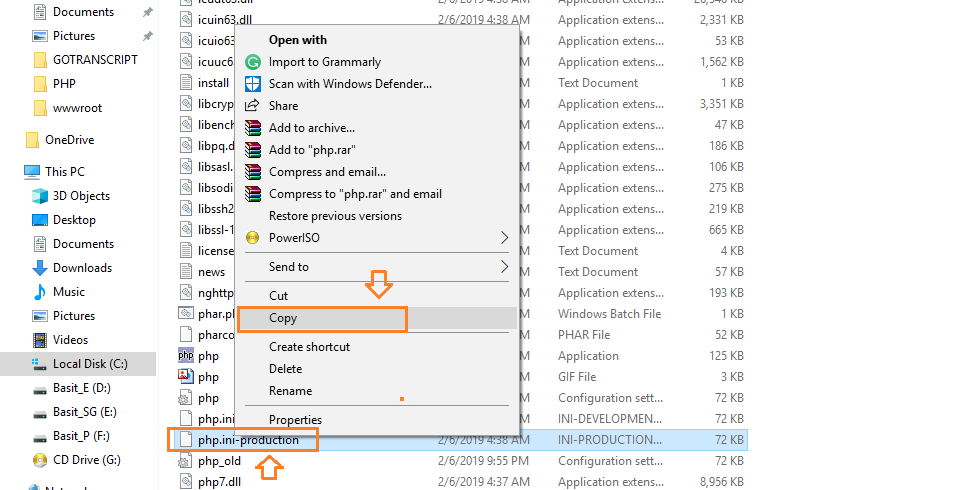
- Rename the copied file as php.ini.
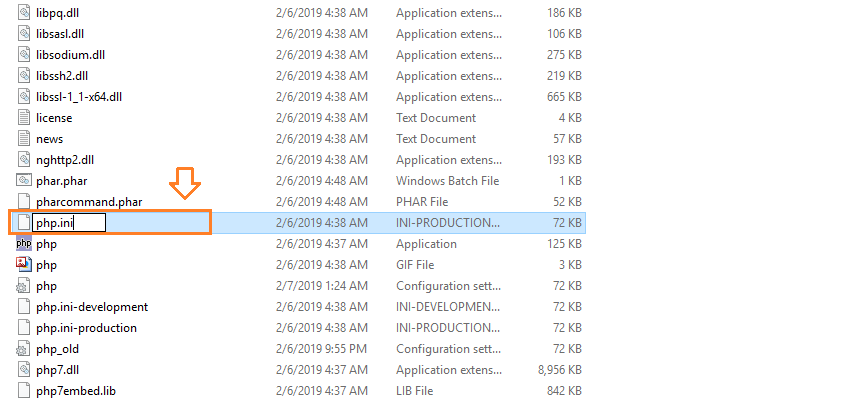
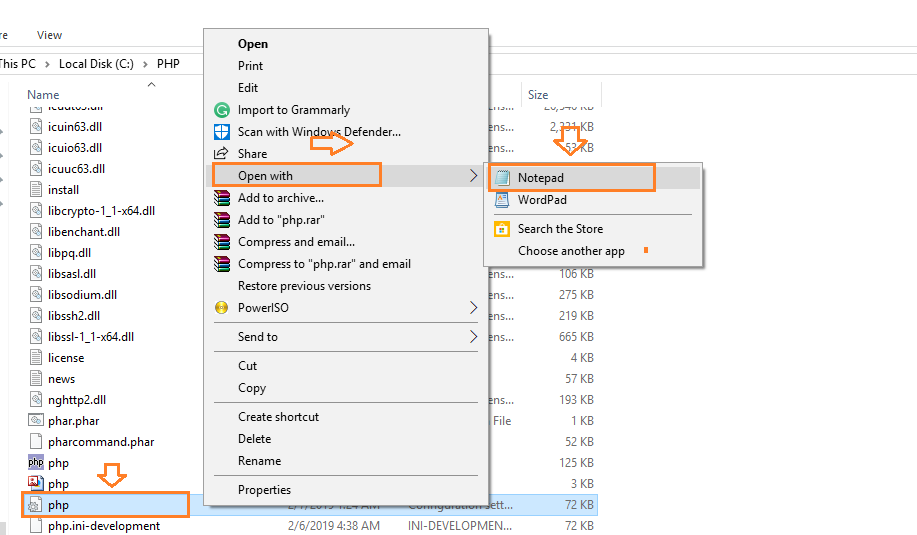
- Right click on the php.ini file(php). Note that the extension .ini will not be visible.
- Open with Notepad.
- -Press Ctrl + F5 to open search box.
- Use Up & Down radio buttons, because some of the lines are at top and some are at middle and some are at bottom.
- “;” is a comment symbol. It means such lines will not be executed.
- Find the lines below in your php.ini, remove the “;” symbol from their start and make the changes, which I have made.
- Save these changes as well.
Find — extension_dir = “./” — Replace with — extension_dir = “C:PHPext”
Find — fastcgi.impersonate=0 — Replace with — fastcgi.impersonate=1
Find — cgi.fix_pathinfo=0 — Replace with — cgi.fix_pathinfo=0
Find — cgi.force_redirect=1 Replace with — cgi.force_redirect=0
Find — error_log = php_errors.log (remove “;“)
Find these lines below and remove only (“;“) from their start.
extension=curl
extension=gd2
extension=mbstring
extension=mysqli
extension=pdo_mysql
extension=xmlrpc
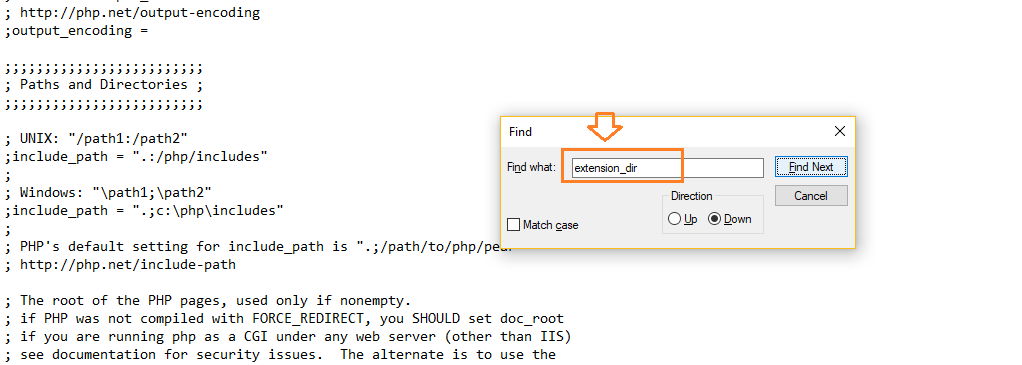
- Press Ctrl + S to save the changes.
Step 4: Configure The Environment Variables
- Click Control Panel
- Click System and Security
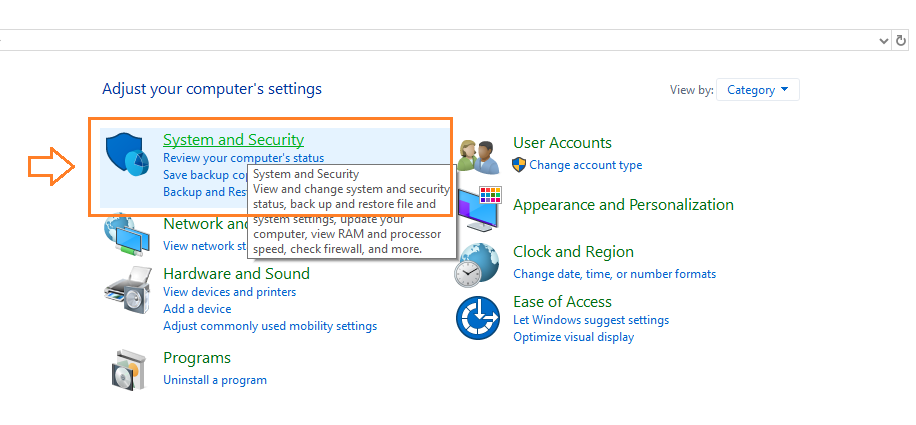
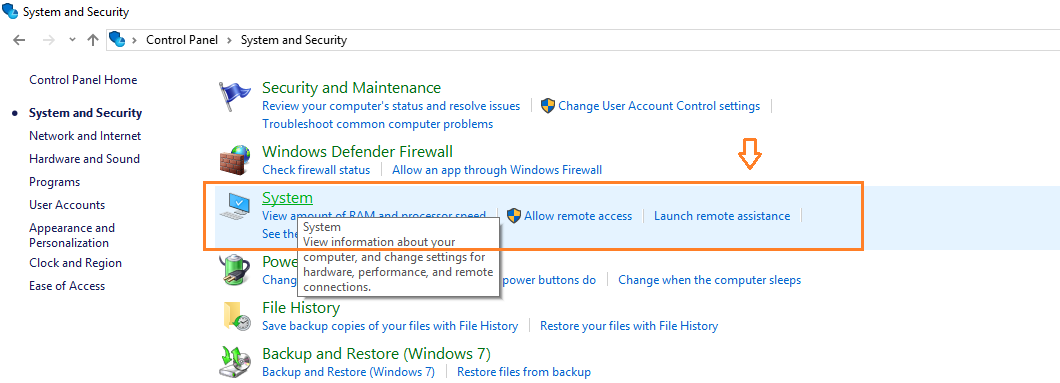
- Click System
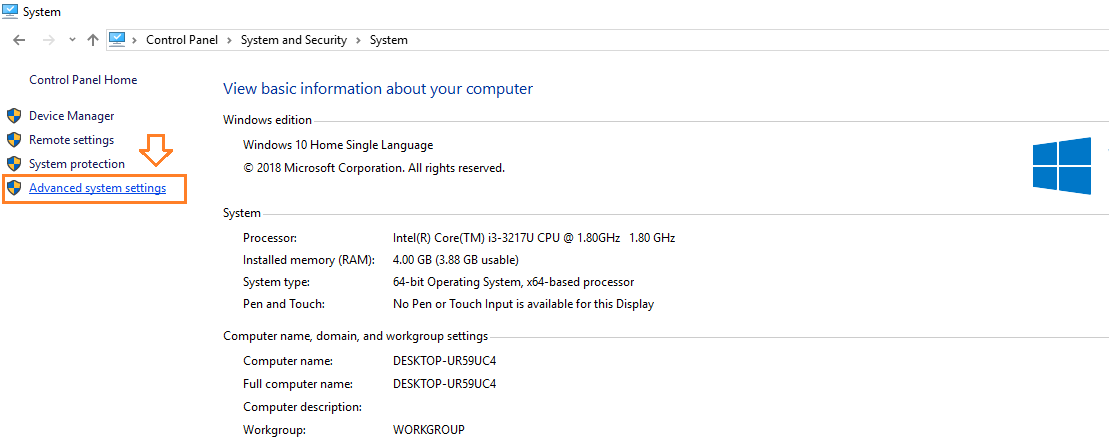
- Click Advanced system settings
- Click Environmental Variables
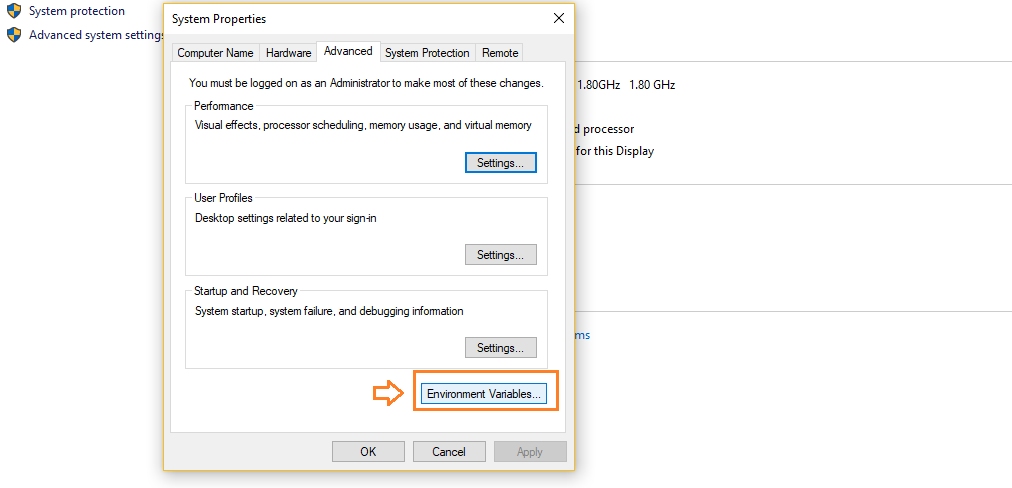
- Select Path & click Edit under the System variables Label.
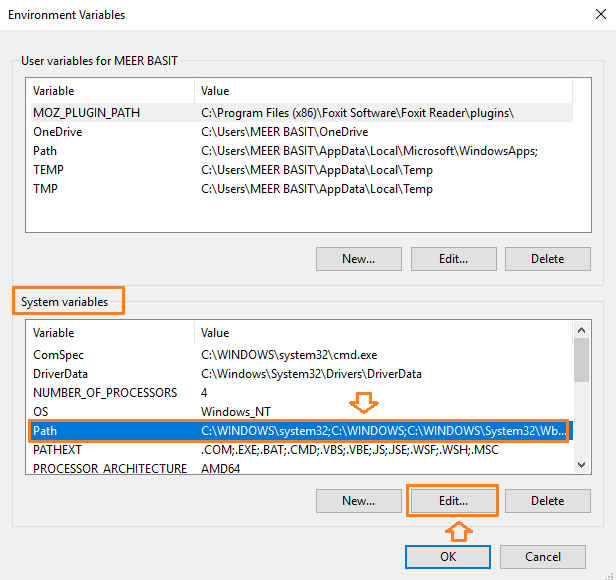
- Click New.
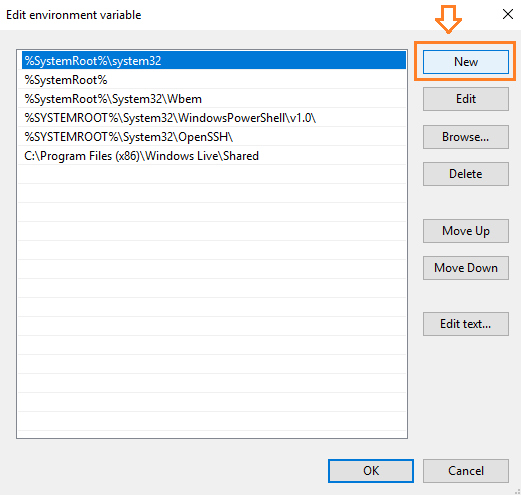
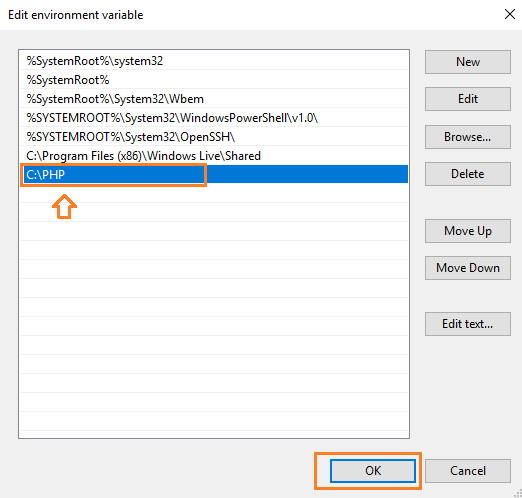
- Type C:PHP
- Click OK
Step 5: Configure IIS
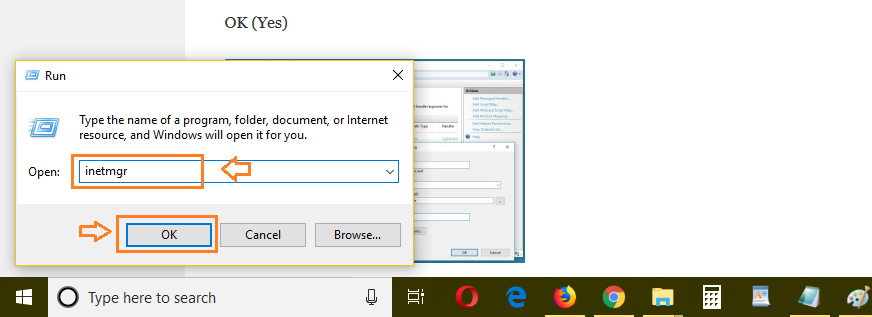
- Type IIS on Windows Search Bar or Type Run.
- Click Run.
- Type inetmgr
- Click OK
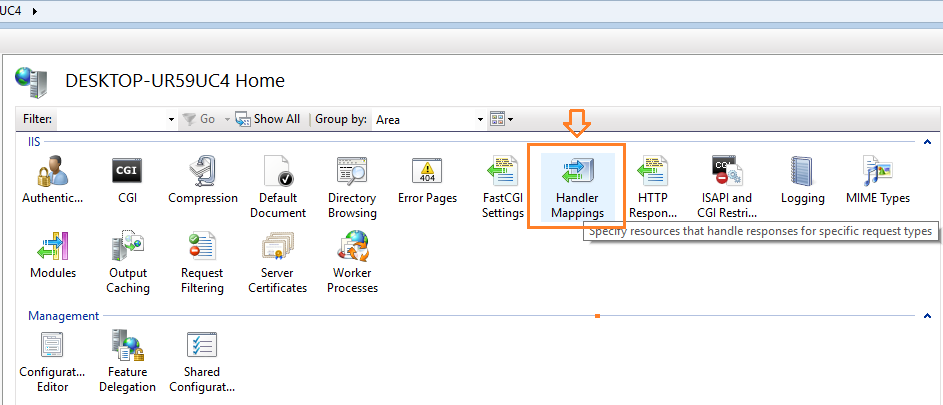
- Click Handler Mappings.
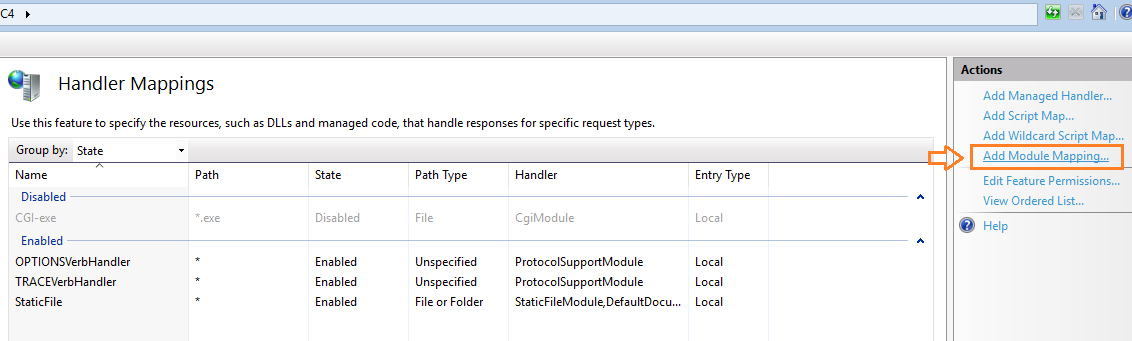
- Click Add Module Mapping
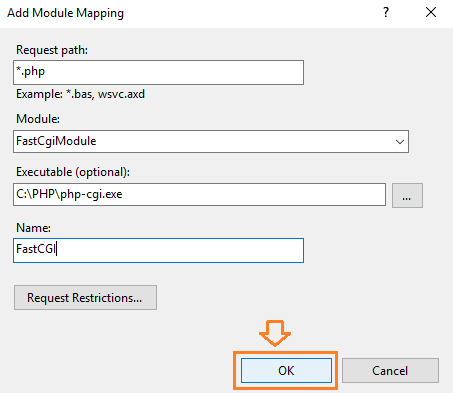
- On request path: type *.php
- On Module, select FastCgiModule from dropdown menu
- On Executable, browse: C:PHPphp-cgi.exe
- Name it anything, type FastCGI
- Click OK.
Step 6: Test The PHP Version
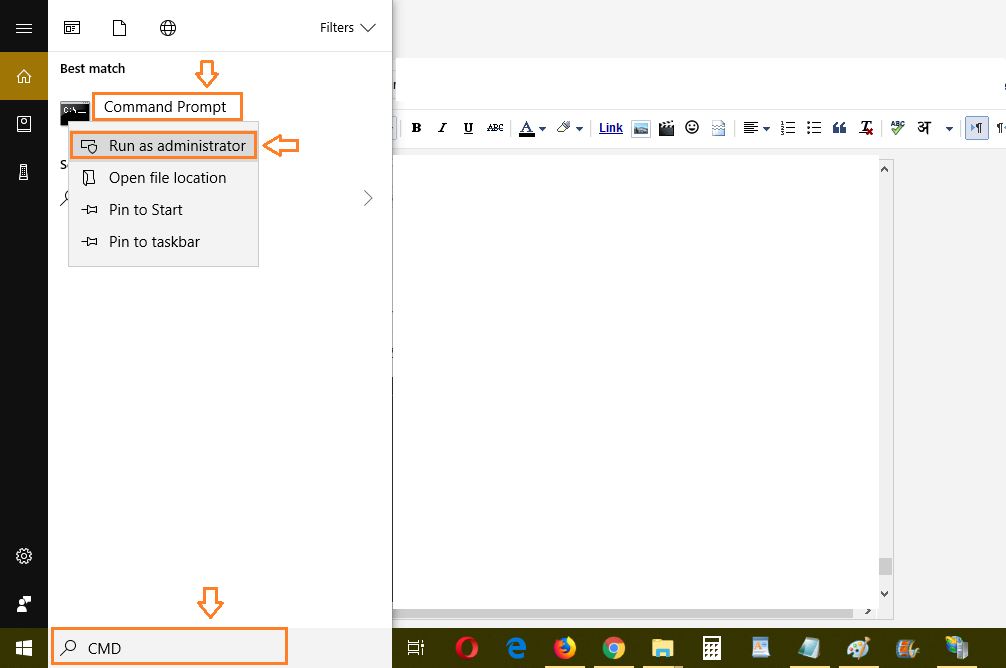
- On Windows Search Bar Type CMD
- Right click on it and select as Run as administrator
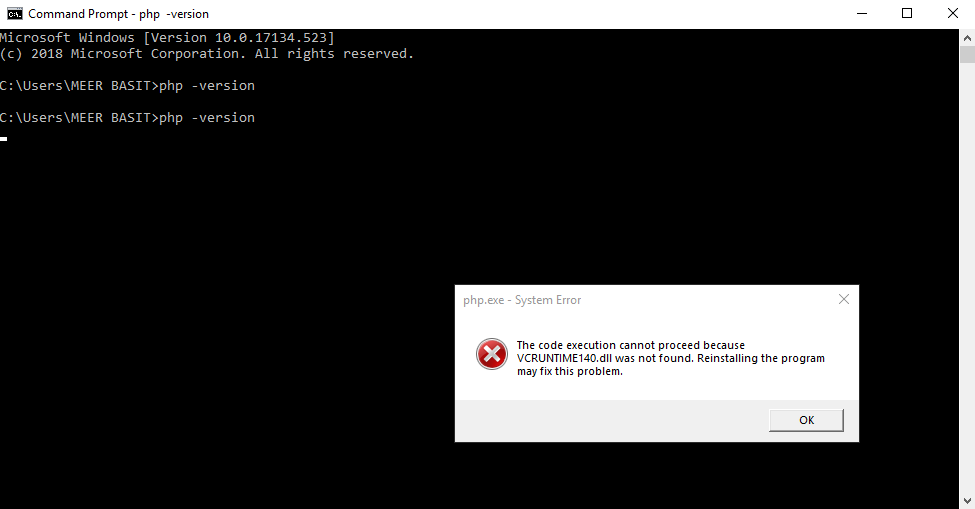
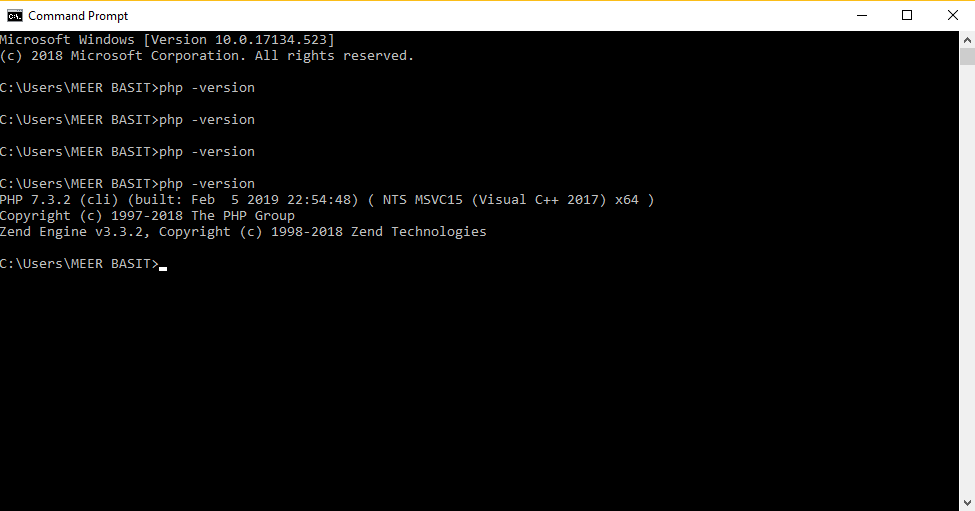
- Type php -version.
- Here it is showing me VCRUNTIME140.dll error because in my computer, The Visual C++ Redistributable. Packages is not installed.
- Check the C: drive whether the setup vc_redist.x64.exe is present or not.
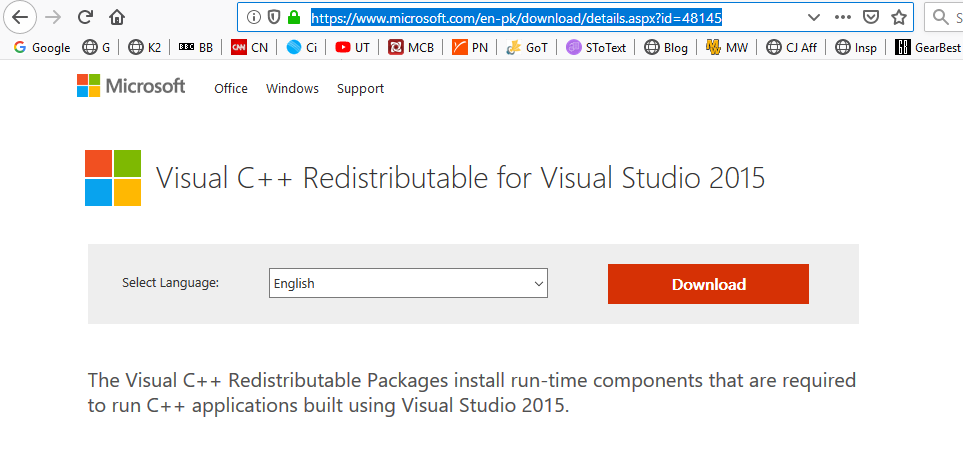
- Visit this link to download: https://www.microsoft.com/en-pk/download/details.aspx?id=48145
- Download Visual C++ Redistributable for Visual Studio 2015
- Click Download
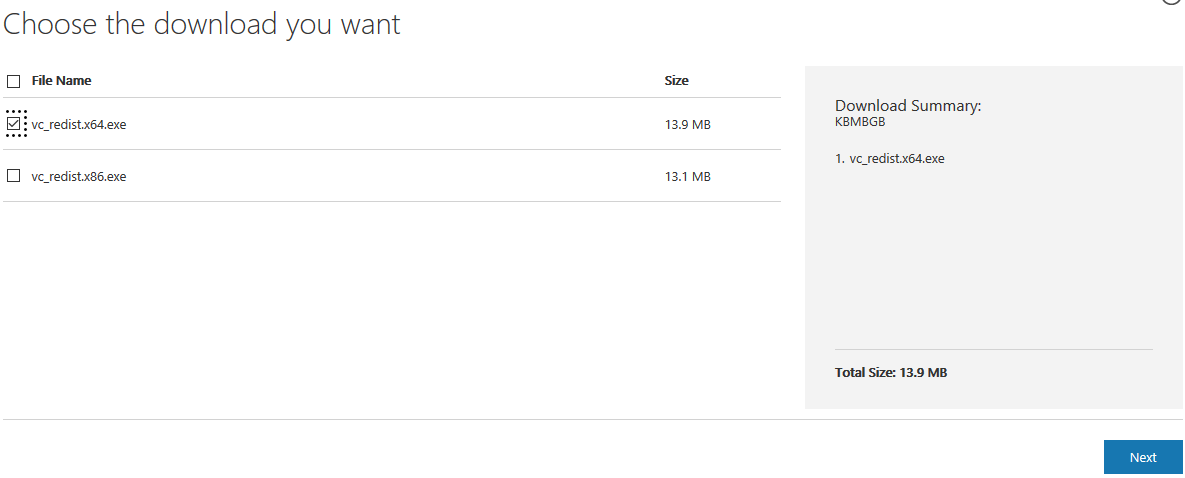
- Tick vc_redist.x64.exe
- Click Next to begin downloading
- Click the setup to install.
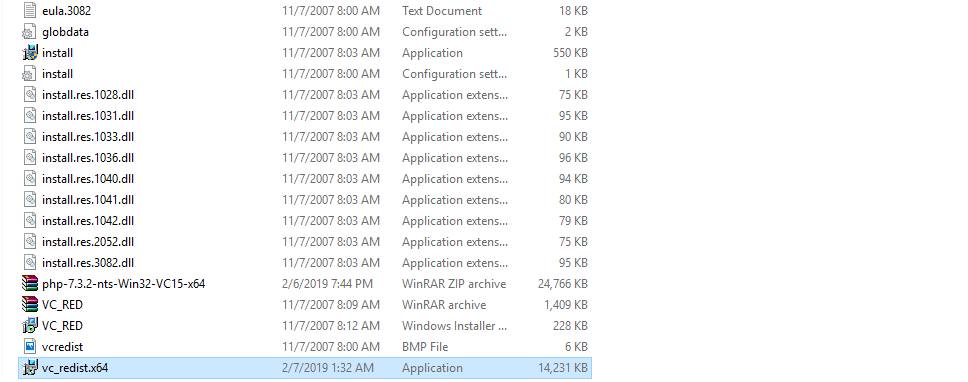
- Now type again, php -version on command prompt.
- You can see that it is not showing the error.
Step 7: Test A PHP File
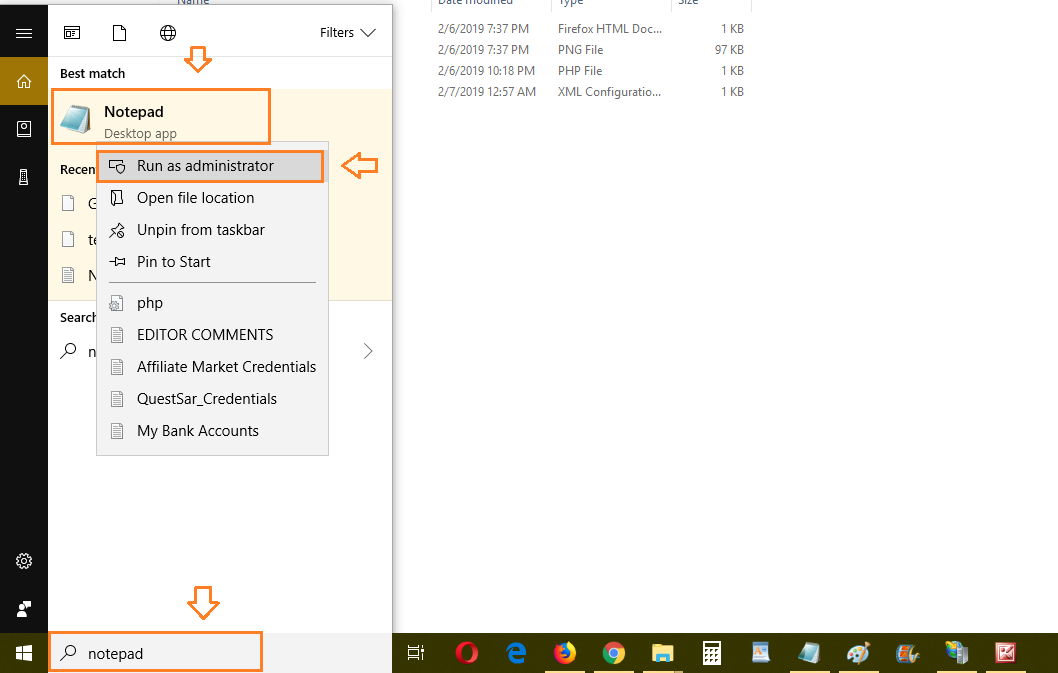
- Click Windows Search Bar
- Type Notepad
- Right Click on Notepad
- Click Run as administrator
- Type this HTML code or write your own code in PHP or HTML.
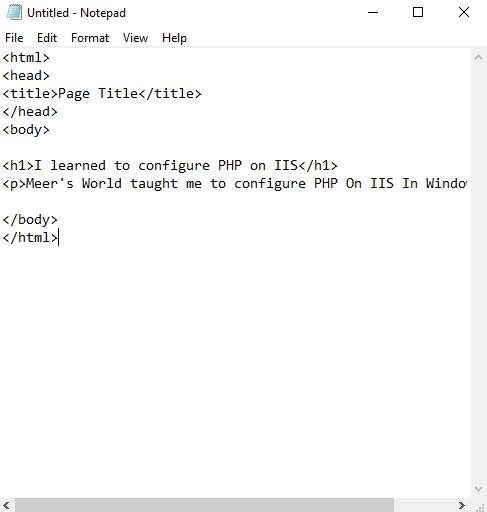
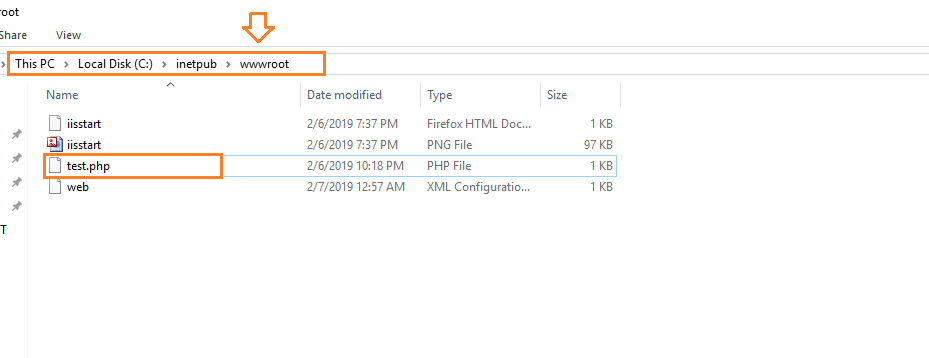
- Save As this file in: C:inetpubwwwroot as test.php
- Click this or type this on your browser’s URL bar
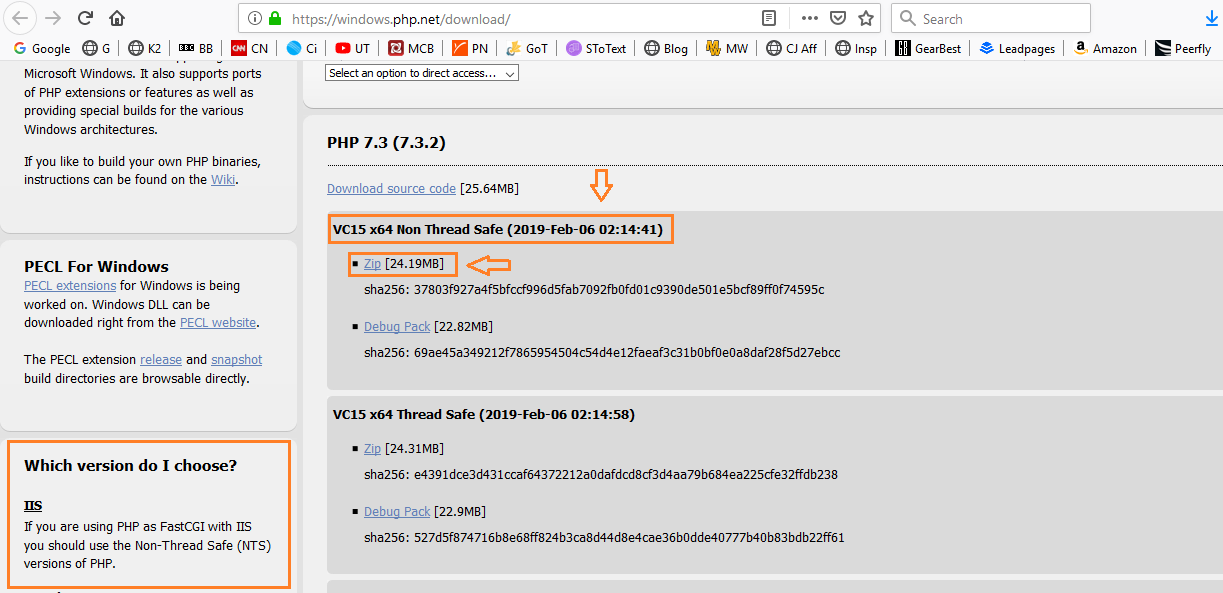
- http://localhost/test.php
- You can see that I have successfully configured PHP on IIS in Windows 10