Backup and Restore Active Directory on Server 2008

As you’ll notice in Server 2008, there isn’t an option to backup the System State data through the normal backup utility.

How to Backup and Restore Active Directory on Server 2008 - 4

So what do we do? We need to go “command line” to backup Active Directory.

1. Open up your command prompt by clicking Start and type “cmd” and hit enter.

2. In your command prompt type “wbadmin start systemstatebackup -backuptarget:e:” and press enter.

Note: You can use a different backup target of your choosing

3. Type “y” and press enter to start the backup process.

How to Backup and Restore Active Directory on Server 2008 - 5

When the backup is finished running you should get a message that the backup completed successfully. If it did not complete properly you will need to troubleshoot.

How to Backup and Restore Active Directory on Server 2008 - 6

Now you have a system state backup of your 2008 Server!

Authoritative Restore of Active Directory

So now what if you accidentally delete an OU, group, or a user account and it’s already replicated to your other servers? We will need to perform an authoritative restore of the Active Directory object you accidentally deleted.

1. To do this you will need to boot into DSRM (Directory Services Restore Mode) by restarting your server and pressing F8 during the restart.

2.Choose Directory Services Restore Mode from the Advanced Boot menu.

How to Backup and Restore Active Directory on Server 2008 - 7

3. Login to your server with your DSRM password you created during Active Directory installation.

4. Once you’re logged into your server and in DSRM safe mode, open a command prompt by clicking Start, type “cmd“, and press enter.

5. To make sure you restore the correct backup it’s a good idea to use the “wbadmin get versions” command and write down the version you need to use.

How to Backup and Restore Active Directory on Server 2008 - 8

6. Now we need to perform a non-authoritative restore of Active Directory by typing “wbadmin start systemstaterecovery -version:04/14/2009-02:39“.

Note: The version of backup will vary depending on your situation. Type “y” and press enter to start the non authoritative restore.

7. Go grab some coffee and take a break while the restore completes.

How to Backup and Restore Active Directory on Server 2008 - 9

8. You can mark the sysvol as authoritative by adding the –authsysvol switch to the end of the wbadmin command.

How to Backup and Restore Active Directory on Server 2008 - 10
Posted in Active Directory | Comments Off on Backup and Restore Active Directory on Server 2008

Event 10154, The WinRM service failed to create the following SPNs: WSMAN/dcname.domain.com; WSMAN/dcname

ometimes when you create new DC you will get this error inside event log. It means that WINRM service can not create SPN in Active directory with its credentials. You can create SPNs manually, but WINRM service will try to create it every time you start domain controller. To solve this you need to give certain permissions to Network Service account in Active Directory.

image

For this to work you need to give Network Service next permissions on DC computer object using ADSI edit console (ADSIEDIT.msc).

image

Posted in windows | Comments Off on Event 10154, The WinRM service failed to create the following SPNs: WSMAN/dcname.domain.com; WSMAN/dcname

Event ID – 29

According to Microsoft :
Cause
This event is logged when the Key Distribution Center (KDC) cannot find a suitable certificate to use for smart card logons, or the KDC certificate could not be verified.
Resolution
Request a new domain controller certificate
Kerberos uses a domain controller certificate to ensure that the authentication information sent over the network is encrypted. If the certificate is missing or is no longer valid, you must delete the domain controller certificate and then request a new one.
To resolve this issue:
Delete the domain controller certificate that is no longer valid.
Request a new certificate.
To perform these procedures, you must be a member of the Domain Admins group, or you must have been delegated the appropriate authority.
Delete the domain controller certificate that is no longer valid
To delete the domain controller certificate that is no longer valid:
1.On the domain controller in which the issue is occurring, click Start, and then click Run.
2.Type mmc.exe, and then press ENTER.
3.If the User Account Control dialog box appears, confirm that the action it displays is what you want, and then click Continue.
4.Click File, and then click Add/Remove Snap-in.
5.Click Certificates, and then click Add.
6.Click Computer account, click Next, and then click Finish.
7.Click OK to open the Certificates snap-in.
8.Expand Certificates (Local computer), expand Personal, and then click Certificates.
9.Right-click the old domain controller certificate, and then click Delete.
10.Click Yes, confirming that you want to delete the certificate.
11.After the certificate is deleted, follow the procedure in the “Request a new certificate” section.
Request a new certificate
To request a new certificate:
1.Expand Certificates (Local computer), right-click Personal, and then click Request New Certificate.
2.Complete the appropriate information in the Certificate Enrollment Wizard for a domain controller certificate.
3.Close the Certificates snap-in.
Verify
To perform this procedure, you must be a member of the Domain Admins group, or you must have been delegated the appropriate authority.
To verify that the Kerberos Key Distribution Center (KDC) certificate is available and working properly:
1.Log on to a computer within your domain.
2.Click Start, point to All Programs, click Accessories, right-click Command Prompt, and then click Run as administrator.
3.If the User Account Control dialog box appears, confirm that the action it displays is what you want, and then click Continue.
4.At the command prompt, type certutil -dcinfo verify, and then press ENTER.
5.If you receive a successful verification, the Kerberos KDC certificate is installed and operating correctly.

Posted in windows | Comments Off on Event ID – 29

NETLOGON event 5807

The Ugly

A routine check of the system log advised warnings related to the NETLOGON service. As this service is related to all remote network accesses to the DC servers, such an event must be carefully investigated.

Event log

There is a long explanation about this error and it requires careful reading. I highlighted the two most important pieces of information. Here is the whole description of this event:

During the past 4.16 hours there have been 107 connections to this Domain Controller from client machines whose IP addresses don't map to any of the existing sites in the enterprise. Those clients, therefore, have undefined sites and may connect to any Domain Controller including those that are in far distant locations from the clients. A client's site is determined by the mapping of its subnet to one of the existing sites. To move the above clients to one of the sites, please consider creating subnet object(s) covering the above IP addresses with mapping to one of the existing sites.

The names and IP addresses of the clients in question have been logged on this computer in the following log file ‘%SystemRoot%\debug\netlogon.log’ and, potentially, in the log file ‘%SystemRoot%\debug\netlogon.bak’ created if the former log becomes full. The log(s) may contain additional unrelated debugging information. To filter out the needed information, please search for lines which contain text ‘NO_CLIENT_SITE:’. The first word after this string is the client name and the second word is the client IP address. The maximum size of the log(s) is controlled by the following registry DWORD value ‘HKEY_LOCAL_MACHINE\SYSTEM\CurrentControlSet\Services\Netlogon\Parameters\LogFileMaxSize’; the default is 20000000 bytes.

The current maximum size is 20000000 bytes.

To set a different maximum size, create the above registry value and set the desired maximum size in bytes.

There is the log file named netlogon.log. This file is located in the folder %SystemRoot%\debug. In most cases, this is C:\Windows\debug. This log is now your best friend.

The Bad

The second piece is that those computers can’t be associated with any know site. I opened the named log file and found that all those machines added to the domain with the IPs from test network have this label NO_CLIENT_SITE.

clip_image003

The Good

I opened the Active Directory Sites and Services console and expanded the Subnets tree.

AD Sites and Services

I found that this highlighted network doesn’t exists. Adding it into the subnets list and associating it with the HQ LAN site solved this issue. No more NETLOGON related events in the System log.

Posted in windows | Comments Off on NETLOGON event 5807

Windows Server – How to identify which domain controller authenticated a user

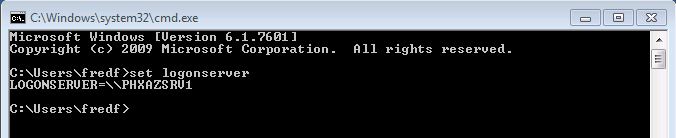
Have the logged on user launch the command prompt on the target computer. Type Set Logonserver the name of the domain controller that authenticated the user will be returned. See the figure below.

Windows Server - How to identify which domain controller authenticated a user

Using echo %username% will allow you create a script to identify the authenticating domain controller. See the figure below.

Echo%username% Windows Server Authentication

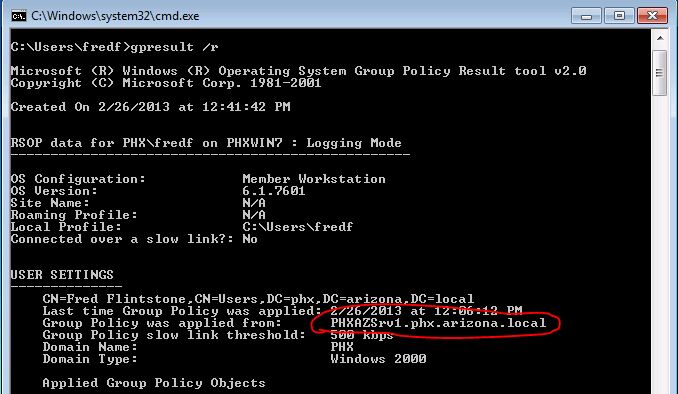
If you just desire to identify which domain controller the user retrieved group policies from you can type gpresult /r. The returned results will provide you the name of the domain controller that provided the logged on user with GPOs. See the figure below.

gpresult /r command prompt Windows Server

As you can see there are multiple ways to identify which domain controller authenticated a user.

Posted in Active Directory, windows | Comments Off on Windows Server – How to identify which domain controller authenticated a user