Active Directory replication error -2146893022: The target principal name is incorrect

  1. Stop the KDC service on the destination domain controller. To do it, run the following command at a command
net stop KDC
  1. Start replication on the destination domain controller from the source domain controller. Use AD Sites and Services or Repadmin.
Repadmin /replicate destinationDC sourceDC DN_of_Domain_NC


Repadmin /replicate ContosoDC2.contoso.com ContosoDC1.contoso.com "DC=contoso,DC=com"
  1. Start the Kerberos KDC service on the destination domain controller by running the following command:

net start KDC

here sample below

repadmin /replicate %FailingServer% %GoodServer% “DC=YourDomain,DC=local”

repadmin /replicate pallas.atbx.net athena.net “DC=atbx,DC=net”

Posted in Active Directory | Comments Off on Active Directory replication error -2146893022: The target principal name is incorrect

Whitelist Email in Office 365

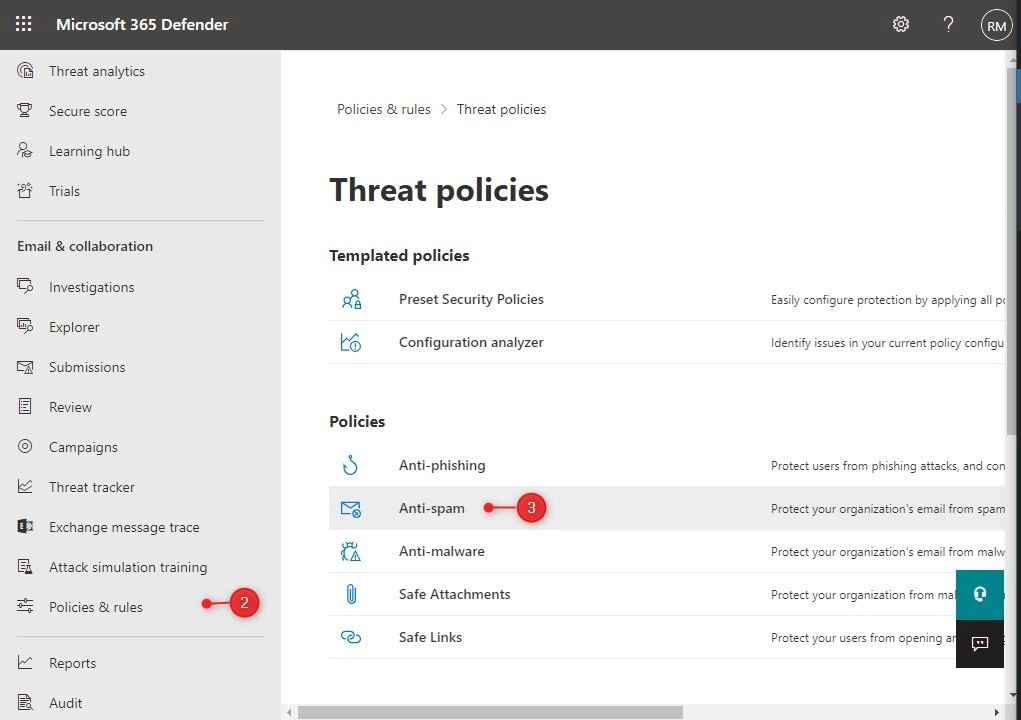
  1. Open Microsoft 365 Defender
  2. Click on Policies and Rules and choose Threat Policies
  3. Open the Anti-Spam policies
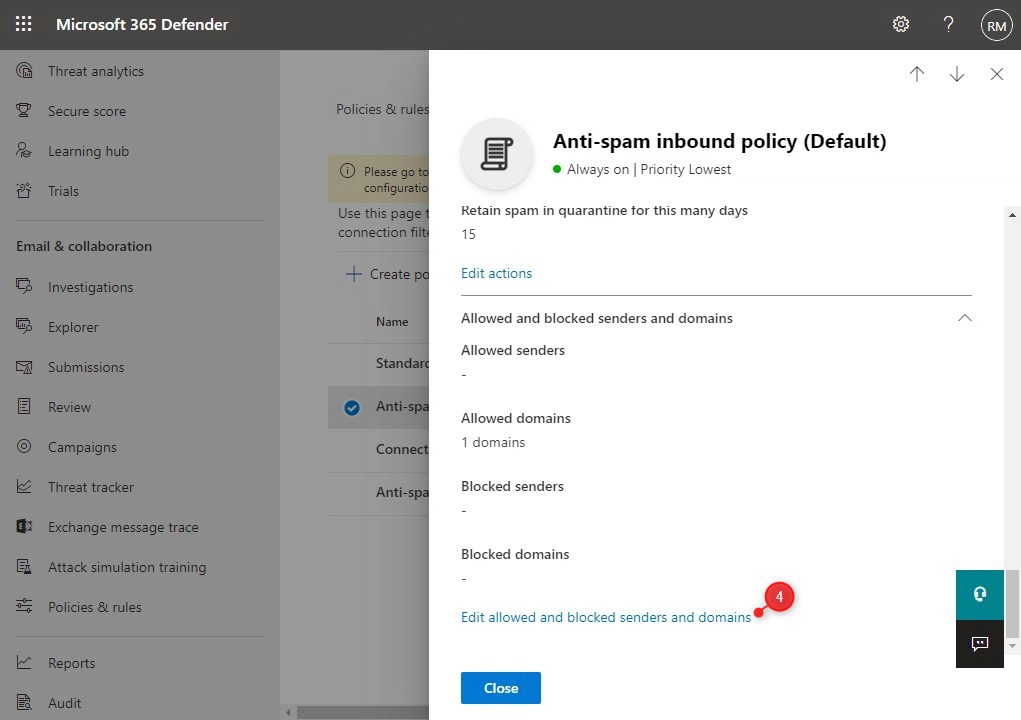
  1. Scroll all the way down in the fly-out and click on Edit allowed and blocked senders and domains
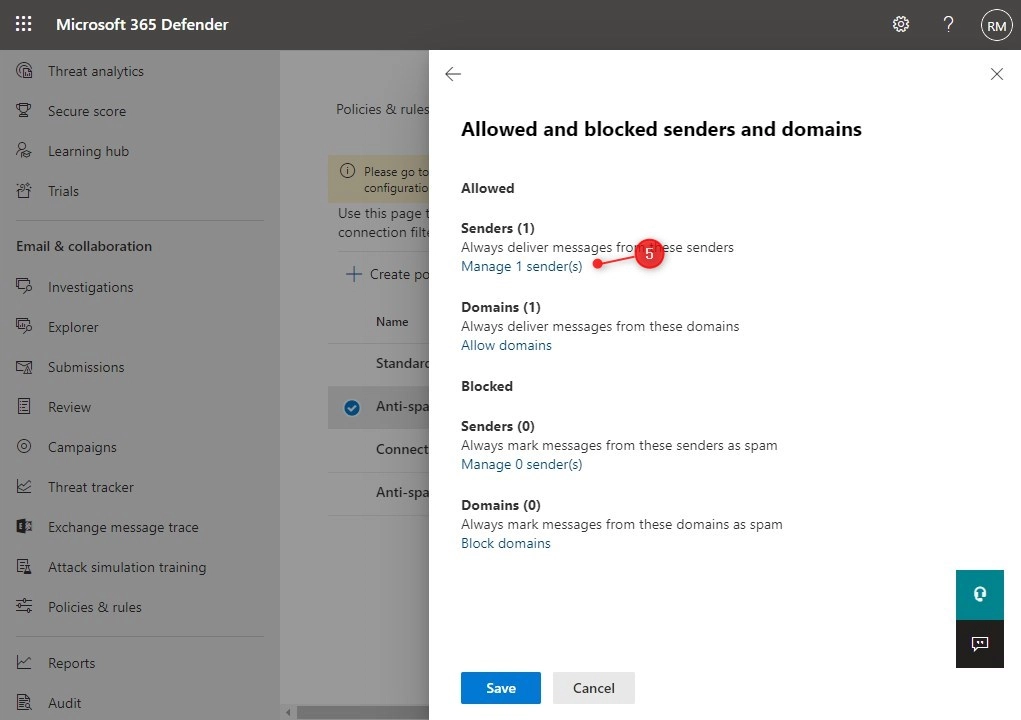
  1. Under Allowed open Manage sender(s)
  2. Click Add senders to add a new sender to the list
  1. Click Done and save to apply the settings
Posted in 365 | Comments Off on Whitelist Email in Office 365

sCONFIG

from cmd then type sconfig that will bring other small windows for server configuration

Posted in core | Comments Off on sCONFIG

DNS server was unable to open Active Directory – Event ID 4000 Event ID 4007

  • Event ID 4000: The DNS server was unable to open Active Directory.  This DNS server is configured to obtain and use information from the directory for this zone and is unable to load the zone without it. Check that the Active Directory is functioning properly and reload the zone. The event data is the error code.
  • Event id 4007: The DNS server was unable to open zone <zone> in the Active Directory from the application directory partition <partition name>. This DNS server is configured to obtain and use information from the directory for this zone and is unable to load the zone without it. Check that the Active Directory is functioning properly and reload the zone. The event data is the error code.

In case the DC had lost trust with itself the solution (according to the KB article) was to reset the DC password. Not sure how that would reset trust, but apparently it does. This involves using the netdom command which is installed on Server 2008 and up (as well as on Windows 8 or if RSAT is installed and can be downloaded for 2003 from the Support Tools package). The command has to be run on the computer whose password you want to reset (so you must login with an account whose initials are cached, or use a local account). Then run the command thus:

netdom resetpwd /server:<PDC.domain.com> /userd:<Domain\domain_admin> /passwordd:*

netdom resetpwd /server:athena.atbx.local /userd:atbx\admin /passwordd:urpassword

share link from Fixing “The DNS server was unable to open Active Directory” errors – rakhesh.com

Posted in Active Directory | Comments Off on DNS server was unable to open Active Directory – Event ID 4000 Event ID 4007

How to Unblock a User if they were blocked from sending emails in Microsoft 365

Users in your organization might get blocked from sending emails in Microsoft 365 if they exceed one of the outbound sending limits or inbound spam policies.

If a user is added to the restricted user list, they will receive the following NDR when trying to send emails out of the organization.

“Your message couldn’t be delivered because you weren’t recognized as a valid sender. The most common reason for this is that your email address is suspected of sending spam and it’s no longer allowed to send email. Contact your email admin for assistance. Remote Server returned ‘550 5.1.8 Access denied, bad outbound sender.”

Admins in your organization can remove users from the restricted users list, this can be done either via the Microsoft Defender 365 portal or via PowerShell.

To remove the user from the restricted list in the Microsoft Defender 365 Portal

  1. Open the Microsoft 365 Defender portal https://security.microsoft.com.
  2. Go to Email & Collaboration > Review > Restricted users.
Graphical user interface, text, application

Description automatically generated
  1. Click on Restricted user page
Graphical user interface, text, application

Description automatically generated
  1. On the restricted users page, you will see a list of users who are blocked from sending emails from your organization.
  2. Review the user you would like to unblock, Select the user, and then click on Unblock.
Graphical user interface, text, application

Description automatically generated
  1. Once you click on Unblock a page with actions will open, here you have an option to Enable MFA for the users.
  2. When you’re finished with the actions and recommendations for the user, click on Submit.
  3. Click YES to confirm the change.
Text

Description automatically generated with medium confidence
Posted in Exchange | Comments Off on How to Unblock a User if they were blocked from sending emails in Microsoft 365