Hyper-V Manager Access Denied

You have a Hyper-V Server 2012 host (which means no GUI tools on the host itself) and no domain controllers online or available (which means no domain authentication). How exactly do you manage the host (and the VMs on it) from a remote Windows 8 computer?

The first step is to run Hyper-V manager with a local account whose name and password match an administrative account on the host itself. Once you do that, however, you’re likely to be able to connect to the host and manage the Hyper-V settings and Virtual Switches. In the list of Virtual Machines, though, you’ll probably see an error:

Access denied. Unable to establish communication between <Hyper-V Server> and <Hyper-V Manager Client>.

It’s not very clear, but it’s not the Hyper-V host denying access exactly, it’s a DCOM service that can’t authenticate remotely.

Here’s the fix:

Run %windir%System32dcomcnfg.exe as administrator.

Expand “Component Services” and “Computers”

Right-click “My Computer” and choose Properties.

Select the “COM Security” tab.

Under “Access Permissions” click “Edit Limits”

Select “ANONYMOUS LOGON” and check “Allow” for “Remote Access”

Select “ALL APPLICATION PACKAGES” and check “Allow” for “Remote Access”

Click “OK” all the way out, and open Hyper-V Manager again.

This time, you should see your VMs.

Posted in Hyper-V | Comments Off on Hyper-V Manager Access Denied

How to reset WordPress Admin Password via MySQL Command Line

Step 1 : Generating MD5 hash for WordPress admin password

  1. Try to change the current password admin123 to wpadmin123.Create a file called wp.txt, containing nothing but the new password.
  2. # vi wp.txt
wppw1
wppw2
  1. Run the below command to get the MD5 string.
  2. # tr -d ‘\r\n’ < wp.txt | md5sum | tr -d '-'
wppw3
  1. Now you will get the MD5 string of the new password wpadmin123 that you have saved in the file wp.txt.
  2. Please save the MD5 string locally.
  3. Run the below command to remove the file wp.txt.
  4. # rm -rf wp.txt
wppw4

Step 2 : Updating the admin password through MySQL using the newly generated MD5 hash string

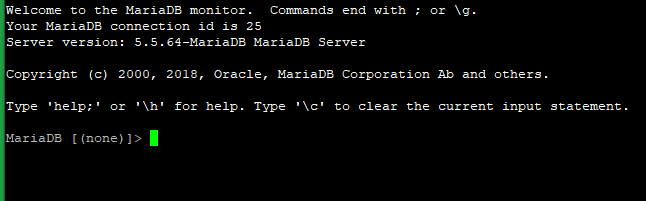
  1. Log in to MySQL with the below command.
  2. # mysql -u root -p
wppw5
  1. Enter your MySQL password.
wppw6
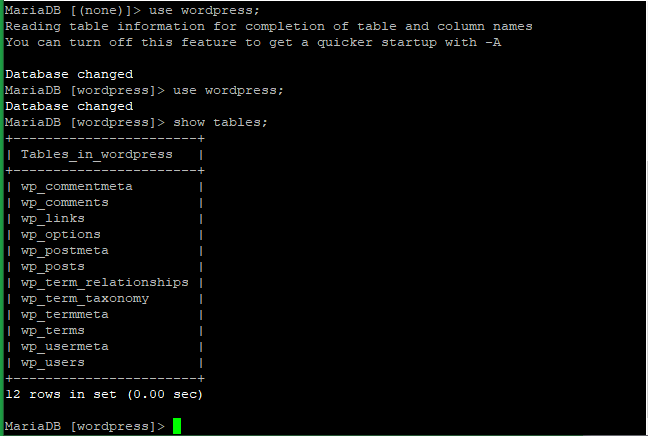
  1. Run the below commands to use the WordPress database and show the table name with wp_users. Here we are using the below database and user for testing.
  2. WordPress DB: wordpress
  3. WordPress User: wp_user
  4. > use wordpress;
  5. > show tables;
wppw7
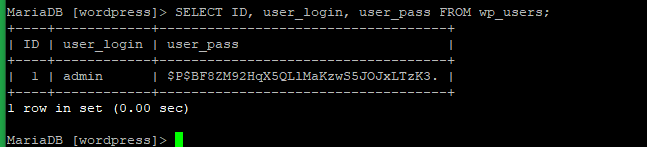
  1. Run the below command to get an idea of what’s going on inside.
  2. > SELECT ID, user_login, user_pass FROM wp_users;
wppw8
  1. From here you can see the MD5 string of the current password of the database WordPress.
  2. Now you can reset the password of your WordPress admin with the below command.
  3. > UPDATE wp_users SET user_pass=('8221bbe0c8e475a295b7533c047a68c7') WHERE user_login = 'admin';
wppw9
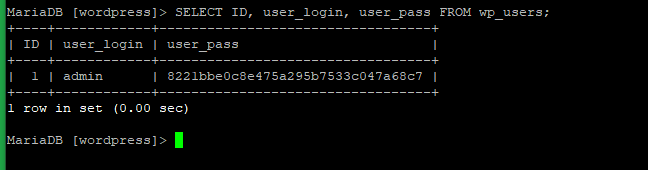
  1. Now check with the below command if the password has changed.
  2. > SELECT ID, user_login, user_pass FROM wp_users;
wppw10
Posted in My Linux | Comments Off on How to reset WordPress Admin Password via MySQL Command Line

windows resync time

  1. Make sure that the Windows Time service is set to Automatic and that it is running.
  2. To sync the time with the domain controller, run the following commands in an administrative command window:

    w32tm /resync 
    net time \\DC /set

    Where DC is the full domain name of the domain controller
Posted in command line of windows, My Windows | Comments Off on windows resync time

Allow anonymous users to send email to a mail-enabled public folde

You can use either Outlook or Exchange Online PowerShell to set permissions on a public folder’s Anonymous account. You can’t use the EAC to set permissions on the Anonymous account.

Use Outlook to set permissions for the Anonymous account

  1. Open Outlook using an account that’s been granted Owner permissions on the email-enabled public folder you want anonymous users to send mail to.
  2. Navigate to Public folders – <user’s name>.
  3. Navigate to the public folder you want to change.
  4. Right-click on the public folder, click Properties and then select the Permissions tab.
  5. Select the Anonymous account, select Create items under Write, and then click OK.

Use Exchange Online PowerShell to set permissions for the Anonymous account

This example sets the CreateItems permission for the Anonymous account on the “Customer Feedback” mail-enabled public folder.

Posted in 365 | Comments Off on Allow anonymous users to send email to a mail-enabled public folde

Exchange PowerShell Command Line

Check the free space available in the database

Get-MailboxDatabase -Status | select Name, DatabaseSize, AvailableNewMailboxSpace

Check for the stopped Exchange Server services

Get-Service | Where-Object {$_.Name -Like ‘MSExchange*’ -and $_.Status -eq ‘Stopped’}

Check mail flow –> Get-Queue

Posted in Exchange, PowerShell | Comments Off on Exchange PowerShell Command Line