cert not store in server certificate

  1. First open MMC with the Certificates plug in.
  2. Drag-n-drop your new certificate (missing the key on the upper left part of the certificate icon) to the “Personal” certificate store. This I did because the name of the “Web Hosting” store is a so called friendly name and not the real name of the store, and I could not remember the real name which is needed for the command prompt utility certutil. Instead I just remembered that the real name of “Personal” is “My”. Makes the rest easy, and once done I just move the certificate back into “Web Hosting”.
  3. Once the new certificate (missing the key) is in the “Personal” store, start a command prompt and issue the following command: certutil -store “My” (assuming the quotes are needed)
  4. Note the serial number of your certificate. It’s in the first line of the certificate dump. If you have other certificates in the “My” store, then you need to find the one you just moved. Look at expiration date and name for example. Mark and copy the serial number.
  5. Now issue the command certutil -repairstore “My” <paste serial number here> and note the private key is verified.
  6. Move the certificate back to the “Web Hosting” store and refresh. You should now see the certificate icon overlaid with a small key icon in the upper left part.
  7. Now you should be able to choose the certificate from inside the IIS bindings dialog.
Posted in IIS, SSL, windows | Comments Off on cert not store in server certificate

SSL v3 goes to the dogs – POODLE kills off protocol

Apache

To disable SSLv3 on your Apache server you can configure it using the following.

SSLProtocol All -SSLv2 -SSLv3

This will give you support for TLSv1.0, TLSv1.1 and TLSv1.2, but explicitly removes support for SSLv2 and SSLv3. Check the config and then restart Apache.

apachectl configtest

sudo service apache2 restart

NginX

Disabling SSLv3 support on NginX is also really easy.

ssl_protocols TLSv1 TLSv1.1 TLSv1.2;

Similar to the Apache config above, you will get TLSv1.0+ support and no SSL. You can check the config and restart.

sudo nginx -t

sudo service nginx restart

IIS

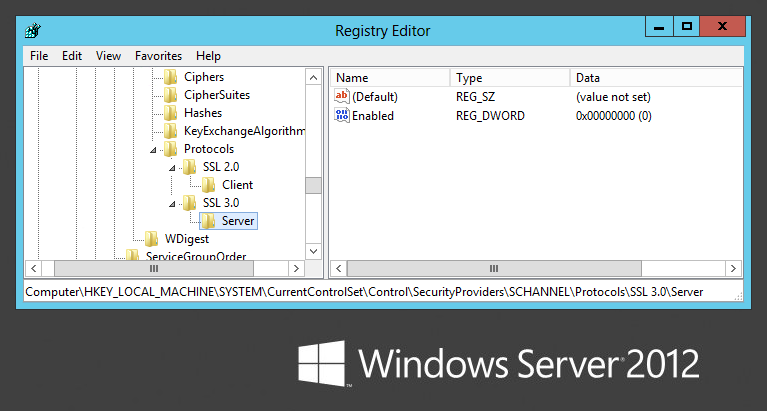
This one requires some registry tweaks and a server reboot but still isn’t all that bad. Microsoft have a support article with the required information, but all you need to do is modify/create a registry DWORD value.

HKey_Local_Machine\System\CurrentControlSet\Control\SecurityProviders \SCHANNEL\Protocols

Inside protocols you will most likely have an SSL 2.0 key already, so create SSL 3.0 alongside it if needed. Under that create a Server key and inside there a DWORD value called Enabled with value 0. Once that’s done reboot the server for the changes to take effect.

IIS Settings

How to check your server

The easiest and probably the most widely used method to test anything to do with your SSL setup is the Qualys SSL Test. Simply navigate to the site, enter the domain for the website you want to test and hit submit to start the test.

SSLv3 goes to the dogs; POODLE kills off protocol (scotthelme.co.uk)

Posted in apache, My Linux, windows | Comments Off on SSL v3 goes to the dogs – POODLE kills off protocol

Disable TLS 1.0 /1.1 in Apache Server

1. Open Apache configuration

Open terminal and run the following command to open Apache configuration file.

$ sudo vi /etc/apache2/httpd.conf

Also read : How to Redirect POST Request Data in .htaccess

2. Disable TLS 1.0/1.1

Look for the following line in bold

#   SSL Protocol support:
# List the enable protocol levels with which clients will be able to
# connect.  Disable SSLv2 access by default:
SSLProtocol all -SSLv2 -SSLv3 

Change it to

#   SSL Protocol support:
# List the enable protocol levels with which clients will be able to
# connect.  Disable SSLv2 access by default:
SSLProtocol all -SSLv2 -SSLv3 -TLSv1 -TLSv1.1

Also read : How to Exclude URL from Auth in Apache

3. Update SSLCipherSuite (Optional)

We will also update SSL Cipher Suite to be more secure. This step is optional and can be skipped if you want.

Look for the following lines.

#   SSL Cipher Suite:
# List the ciphers that the client is permitted to negotiate.
# See the mod_ssl documentation for a complete list.
SSLCipherSuite HIGH:MEDIUM:!aNULL:!MD5:!SEED:!IDEA

Replace the last line above as shown below and also add SSLHonorCipherOrder on after that.

#   SSL Cipher Suite:
# List the ciphers that the client is permitted to negotiate.
# See the mod_ssl documentation for a complete list.
SSLCipherSuite HIGH:!aNULL:!MD5:!3DES
SSLHonorCipherOrder on

Save and exit the file.

Also read : How to Check Concurrent Connections in Apache

4. Restart Apache Server

Restart Apache Server to apply changes

$ sudo service apache2 restart
OR
$ sudo service httpd restart
Posted in apache, My Linux | Comments Off on Disable TLS 1.0 /1.1 in Apache Server

Open Control Panel Tools with Run Commands

Control Panel ToolRun Command
Add or Remove Programsappwiz.cpl
Power Optionspowercfg.cpl
Devices and Printerscontrol printers
Scanners and Camerascontrol sticpl.cpl
Internet Options/Propertiesinetcpl.cpl
Keyboard Properties/Settingscontrol main.cpl keyboard
Mouse Propertiescontrol main.cpl
Joystick Properties / Game Controllerscontrol joy.cpl
Accessibility Options / Ease of Access Centercontrol access.cpl
Multimedia / Sound Propertiescontrol mmsys.cpl
Network Properties / Network Connectionsncpa.cpl
Network and Sharing Centercontrol.exe /name Microsoft.NetworkandSharingCenter
System Propertiessysdm.cpl
Region / Regional Settingsintl.cpl
Fonts Folderfonts
Date and Time Propertiestimedate.cpl
Administrative Toolscontrol admintools
Component Servicesdcomcnfg
Device Managerdevmgmt.msc
Remote Desktopmstsc
Security and Maintenancewscui.cpl
User Accounts / User Account Managementcontrol nusrmgr.cpl
Windows Firewallfirewall.cpl
Color Managementcolorcpl
Credential Managercontrol.exe /name Microsoft.CredentialManager
Default Programscontrol.exe /name Microsoft.DefaultPrograms
Folder Options / File Explorer Optionscontrol folders
Indexing Optionscontrol.exe /name Microsoft.IndexingOptions
Recoverycontrol.exe /name Microsoft.Recovery
Taskbar and Navigationcontrol.exe /name Microsoft.TaskbarandStartMenu
Sync Centermobsync
Posted in command line of windows, My Windows, windows | Comments Off on Open Control Panel Tools with Run Commands

Outlook Stuck on Loading Profile

Causes Behind Outlook Stop Loading the Profile

Before moving to solutions, discussing the possible causes behind this issue is essential. Following are some significant causes:

  • Corrupt Outlook data file
  • The navigation bar issues
  • Defects in Outlook add-ins
  • Outlook is running in the compatibility mode
  • Processes like Outlook.exe and others are still running in the background

Fix Outlook Profile Not Loading Issue

Follow these methods to resolve the Outlook stuck on loading profile issue.

Run Outlook as Administrator

Usually, Outlook doesn’t need admin access to work, but there is a possibility that the issue is because of Outlook’s lack of permission to access the profile. That’s why running Outlook as an administrator can resolve ‘Outlook stuck on loading profile’ issue. Follow the steps below to do this:

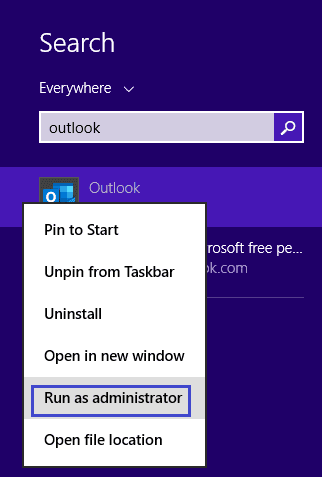
  1. Open the search bar and type Outlook.
  2. Right-click on Outlook and then choose Run as Administrator.Run as Administrator
  3. Click Yes to confirm it. Now Outlook is ready to run as administration

Disable Outlook Add-ins

If the above method doesn’t work, you can also try to resolve this issue by disabling Outlook add-ins. Follow the steps below to do it:

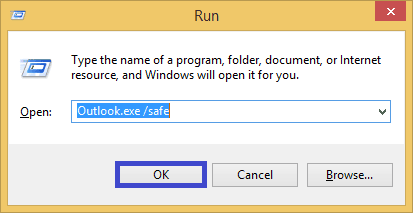
  1. Open the Run Box by pressing the ‘Windows + R’ key together. Now enter ‘Outlook.exe /safe’ and click OK (make sure the Outlook application is closed).enter Outlook.exe safe and click OK
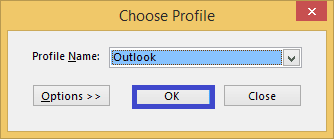
  2. Select your Profile and Click ‘OK.’Select your Profile and Click OK
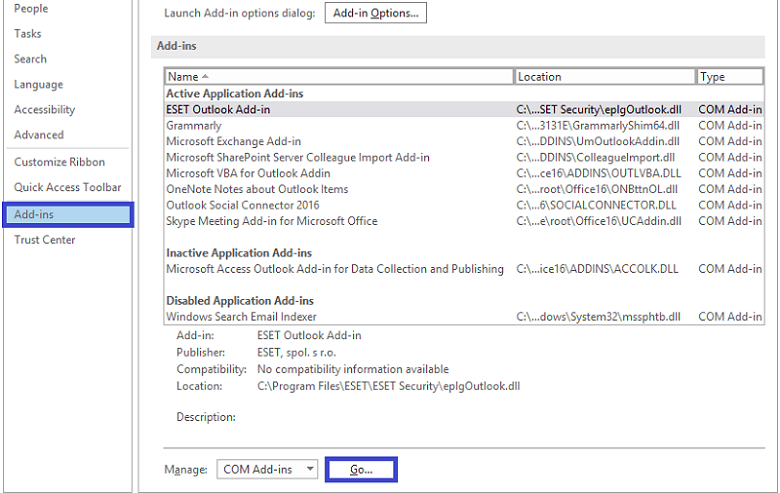
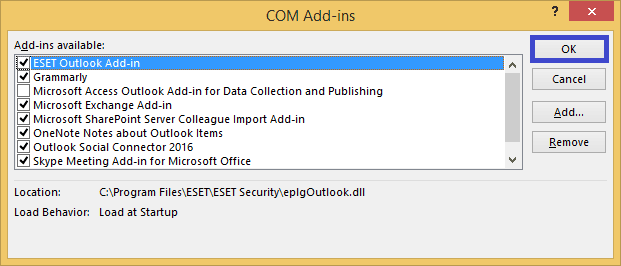
  3. Now, select the ‘File’ then ‘Options.’ After that, tap on the ‘Add-ins’ and click on ‘Go.’Add-ins and click on Go
  4. Now, uncheck all the Add-ins and then click OK.Add-ins and then click OK
  5. Once completed, close Outlook and restart it.

Reset the Navigation Panel

Follow the steps below to reset the navigation panel and fix the loading profile issue.

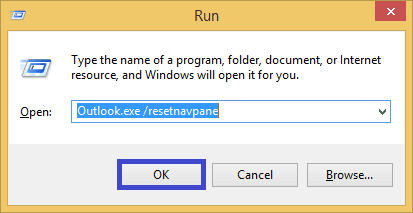
  1. Open the Run Box by pressing the ‘Windows + R’ key together. Now enter ‘Outlook.exe /resetnavpane’ and click ‘Ok’ (make sure the Outlook application is closed).click OK
  2. Now Outlook’s navigation panel will go into the default state.

Repair Corrupted Outlook Files

Outlook won’t work correctly and will not be able to load the profile screen if its files are corrupted. These files can be repaired through an inbuilt program in the Outlook installation directory.

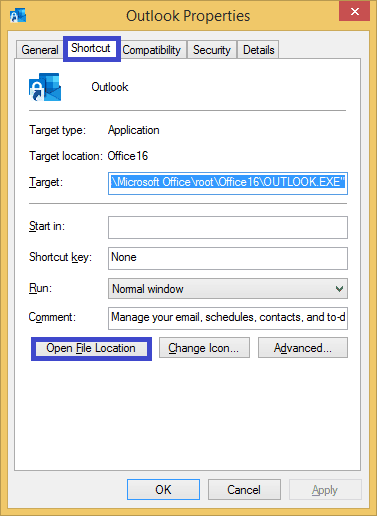
  1. Right-click on Outlook and select ‘Properties’ to open it.
  2. In the ‘Shortcut’ bar, click ‘Open File Location. ‘ It will open the Outlook Installation directory.Open File Location
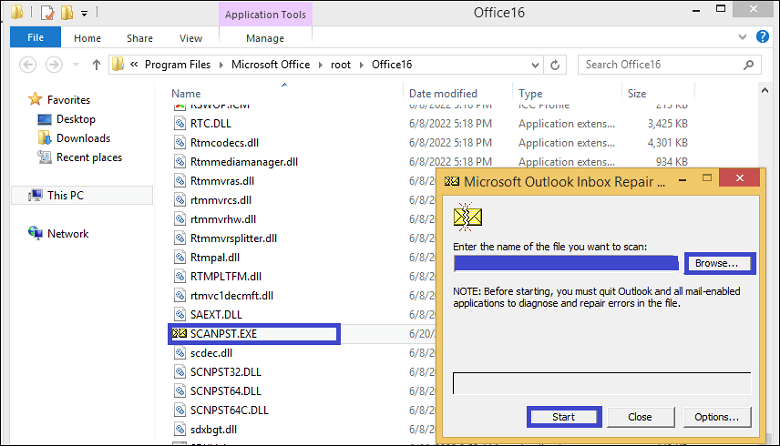
  3. Search SCANPST.EXE and open it. Outlook Inbox Repair Tool will open where you can select a file to scan and repair it.
  4. Now, click Browse and select the PST file and click ‘Start.’ Now the file scanning starts to find out errors.click Start
  5. Click ‘OK’ once SCANPST has finished scanning and repairing.

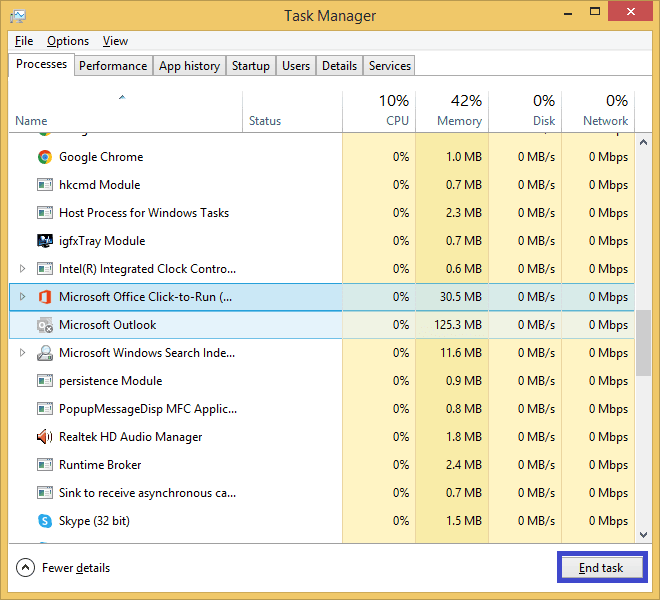
End Office-related Processes in Task Manager

Sometimes, Outlook might not work if other Office-related processes are still running. You can end all office-related processes in task manager to ensure a fresh start.

  1. Open Task Manager on your system.
  2. Select Office-related tasks and then click ‘End Task.’click End Task
  3. Now Open Outlook.

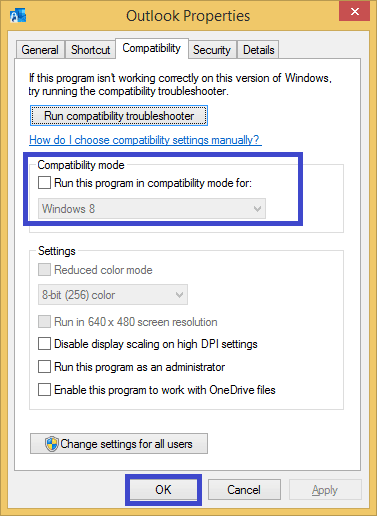
Disable Outlook’s Compatibility Mode

Follow the steps below to disable Outlook’s compatibility mode.

  1. Right-click on Outlook and select ‘Properties.’
  2. Now tap on the Compatibility tab and uncheck the option ‘Run this program in compatibility mode for’ and click ‘Ok’ for confirmation.click Ok for confirmation

Repair Corrupted Outlook Data Files

If the above methods fail to resolve Outlook’s loading profile issue, your PST files might be corrupted or damaged. In such a case, we recommend you go ahead with one of the best tools named Kernel for Outlook PST Repair. This tool uses quick data recovery algorithms to repair the damaged or corrupted PST files quickly. It has an easy-to-understand User Interface, and you can quickly recover all emails, contacts, notes, attachments, etc., with complete accuracy. Moreover, it also supports all Outlook versions up to 2019.

Conclusion

Situations like ‘Outlook stuck on loading profile’ can’t be ignored and require some serious actions to resolve them. With the above-discussed methods, you can try to resolve this issue. From quite a few reasonable solutions, we recommend you use professional Outlook PST Repair software which we discussed last. It is the most reliable and straightforward software to repair errors like Outlook crashes when replying to email and corrupt PST files. It also recovers large PST files and retrieves deleted emails and attachments.

Posted in 365, Exchange, Office 365 | Comments Off on Outlook Stuck on Loading Profile